Moving WhatsApp From Android to iPhone Without Losing Your Chats
Apple's Move to iOS app can carry your WhatsApp history to an iPhone, but only during initial setup. Here's what to check before you start.
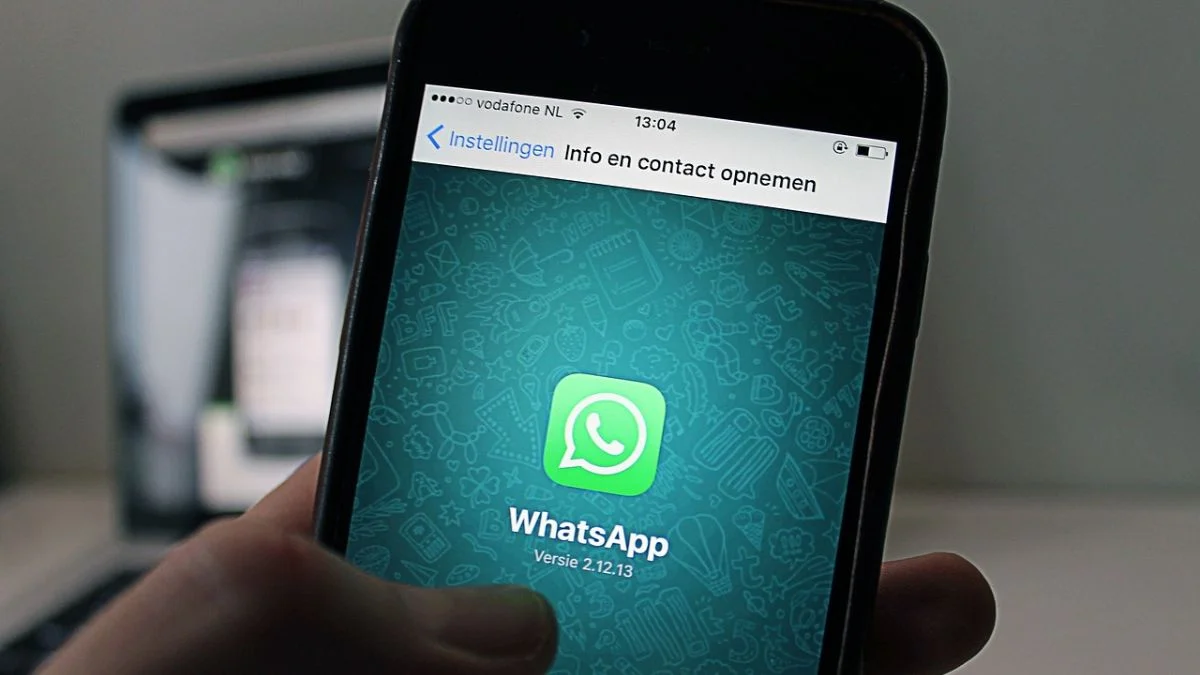
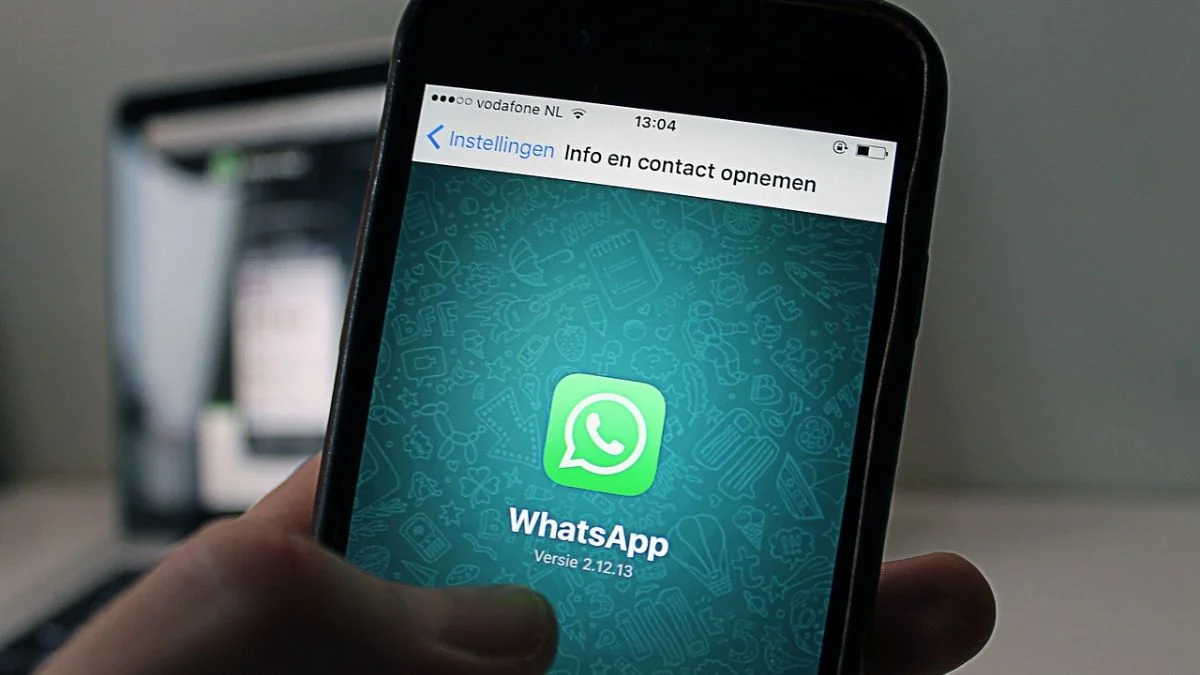
The part of this switch that catches people out is timing. Apple's Move to iOS app can carry your WhatsApp history from Android to a new iPhone at no cost, but only as part of the iPhone's first-run setup. Miss that window and the transfer path closes, so the sensible approach is to prepare everything before you unbox anything.

The reason is structural. Android stores WhatsApp backups on Google Drive, while iOS keeps them on iCloud. There's no cloud-to-cloud bridge here, so the chat history has to move directly from one handset to the other during pairing.
Check the Phones Before You Start
Start with software. The Android phone needs Android 5 (Lollipop) or later, and the iPhone needs iOS 15.5 or later. Both phones should have the latest version of WhatsApp installed, and the Move to iOS app needs to be on the Android device.
The iPhone also has to be either brand new or freshly erased. If it's a used device you've already set up, back up what matters and erase it first through Settings > General > Transfer or Reset iPhone > Erase All Content and Settings. Skipping this is the most common reason the migration option doesn't appear where you expect it.
Then there's the phone number. The number you use on the iPhone must be the same one WhatsApp is registered to on Android, because you'll verify it by SMS during the restore. If your SIM or eSIM plan is changing at the same time, sort that out before the day of the switch, not during it.
Pair the Devices During iPhone Setup
Power on the iPhone and work through the early setup screens: language, region and Wi-Fi. When you reach Transfer Your Apps & Data, choose From Android. Tap Continue on the Move from Android screen, and the iPhone will generate a one-time code, either six digits or ten.
On the Android phone, open Move to iOS, accept the terms, and enter that code on the Find Your Code screen. The iPhone then creates a temporary private Wi-Fi network, and you tap Connect on the Android side to join it. Keep both phones close together while this happens. Once they're linked, Android shows the Transfer Data screen, where you pick WhatsApp from the list of transferable categories.
Export, Transfer and Wait
Tap Start on the WhatsApp export screen and the Android phone packages your conversations, photos, videos and voice notes. How long that takes depends on how much history you have, so a long-running account with years of group chats will take longer than a lightly used one. You'll be logged out of WhatsApp on Android once packaging finishes. Tap Next to return to Move to iOS.
Tap Continue to begin moving the data. Keep both phones unlocked, powered on and still until the loading bar on the iPhone completes. Here's the detail that trips people up: the Android handset may display a finished state before the iPhone has actually finished receiving everything. Wait for the iPhone to confirm, and only then tap Done on Android.
Restore WhatsApp on the iPhone
Finish the rest of iOS setup, including Face ID and Apple ID sign-in, until you reach the Home Screen. Open the App Store, install the latest WhatsApp, and launch it. Sign in with the number that was registered on Android and complete SMS verification. When WhatsApp detects the transferred backup and offers to restore it, tap Start.
What Comes Across and What Doesn't
Most of the important material moves: personal and group chats, messages, images, video, documents, audio messages, profile settings and Communities. That covers the bulk of what people actually care about.
Some items don't make the trip. Per the process described, WhatsApp call history, P2P payment logs and media from WhatsApp channels stay behind because of platform limitations. If any of those matter to you, such as a record of payments, export or screenshot them on Android before you switch. This is the kind of thing you only discover after the old phone is gone, so check it while you still have access.
Back Up to iCloud Straight Away
Once the history loads, it lives only on the iPhone's internal storage until you create a cloud copy. Open WhatsApp, go to Settings > Chats > Chat Backup and tap Back Up Now. That puts a fresh copy into iCloud, so you aren't depending on a single device.
Hold on to the Android phone until you've confirmed your messages and media are all there on the iPhone. Scroll back through a few important group chats, open some photos and check a couple of voice notes. Only then should you think about selling, trading in or wiping the old handset.
My read is that the migration itself is the easy bit. The real work is the preparation: matching the phone number, clearing the iPhone to a fresh state, and taking your own copies of anything the transfer won't carry. Do that, keep the two phones still during the transfer, and the switch is about as painless as moving messaging history between platforms gets.