Messages location sharing adds custom durations of up to 30 days
Apple’s version 27 systems add custom location sharing for up to 30 days, alongside live sharing, pinned map links and a quiet way to pause updates.

Messages can now share your live location for a custom period of up to 30 days on Apple’s version 27 operating systems. That gives people more control than the preset one hour and one day options, while keeping location sharing tied to Apple’s Find My service. You can also share indefinitely, send a one-time map pin, or quietly pause live sharing when you need privacy.

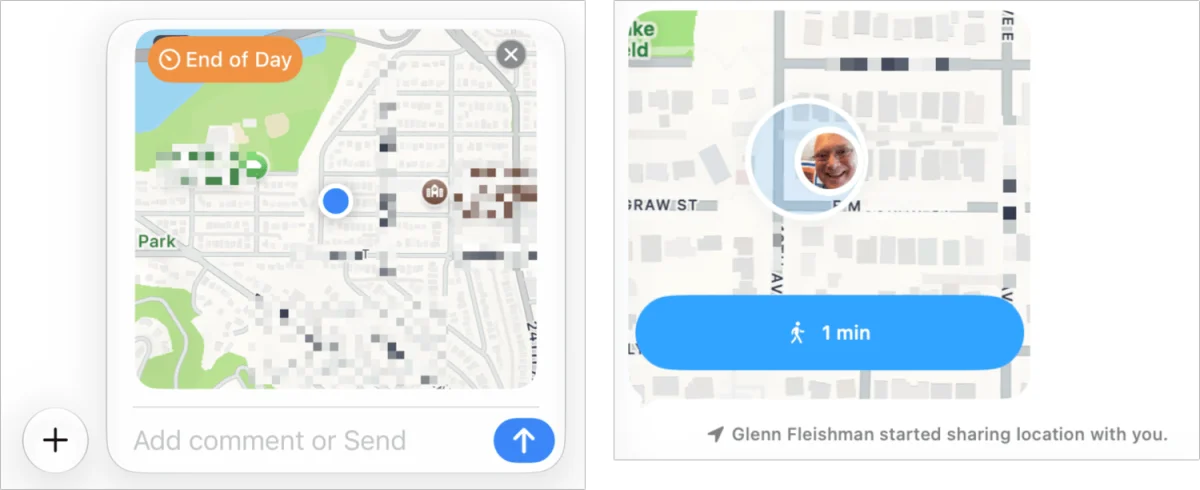
Live sharing is useful when someone needs to know where you are as you travel, or when a group is trying to meet up. The recipient sees a location card in the Messages conversation, and its position updates as you move. A pinned location works differently: it sends a snapshot with a link to Apple Maps, so the recipient can see where you were when you sent it.
Live sharing and map pins
Ongoing location sharing requires iMessage. In version 27 releases, its duration choices include one hour, the rest of the day, a custom period from 15 minutes to 30 days, or indefinite sharing through Find My. Earlier releases show slightly different labels and don’t offer the custom duration. Apple also lets you start and stop location sharing from the Find My app on iPhone, iPad, Mac and Apple Watch. Find My on iCloud.com doesn’t provide this people-sharing feature.
A pinned location doesn’t keep updating. Messages can send one through SMS/MMS, RCS or iMessage, though the pin-sharing steps are available on iPhone, iPad and Apple Watch. The recipient gets an Apple Maps link labeled “Dropped Pin,” with the sender’s current address beneath it.
Here’s how to send a live location from an iPhone, iPad or Apple Watch:
- Open or start a conversation, tap the plus (+) button, then choose Location.
- In the location preview at the bottom of the conversation, tap Share and select a duration.
- For a custom period, choose the length, from 15 minutes to 30 days, then tap Start Sharing.
- On iPhone or iPad, tap the Send arrow to begin. On Apple Watch, sharing starts when you choose Start Sharing.
If the other person isn’t sharing their location with you, Messages offers a Request button. If you already share with them, the interface skips the duration choice and shows Send instead. That sends a reminder and a link to Find My; it doesn’t create a new sharing period.
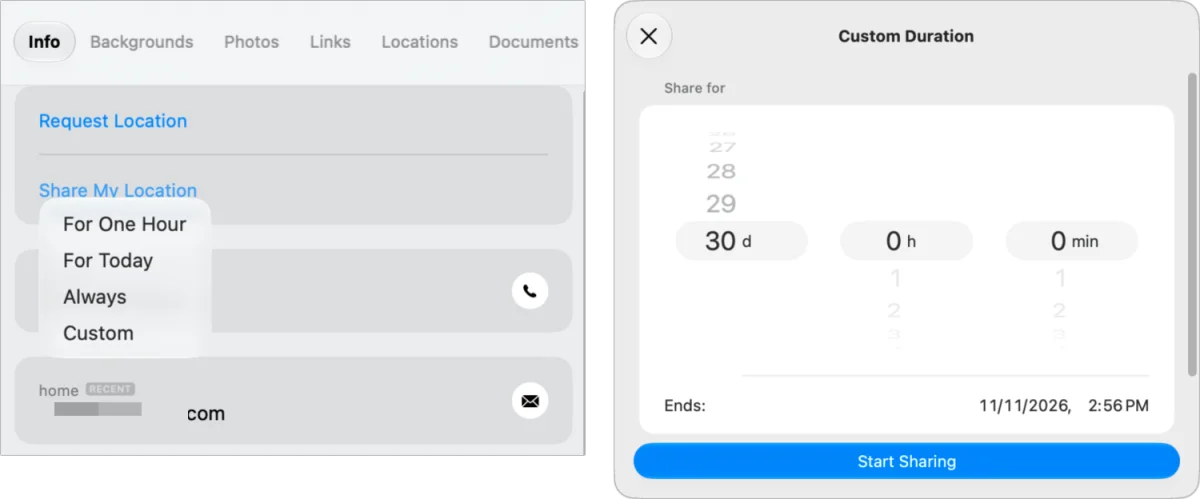
On a Mac, open Messages, click the profile names at the top of the conversation to open the Info pane, then click Share My Location. Apple’s steps vary across its devices, even though the result is the same.
What recipients see, and how to pause sharing
Find My determines which Apple device supplies your location. Check the Me view in Find My to see the device listed under My Location. If you start sharing from a different device, you’ll see an alert saying “Another Device Used for Your Location,” with options to cancel or continue. With iPhone Handoff, location follows the iPhone currently in use.
Recipients can open your position in Find My or share their own location in return. In Messages, they can also check the conversation’s Info pane for your city or a nearby landmark, when available. The location card indicates how recently the position was updated: “Now” means it was updated within roughly the past minute, while “Live” indicates a real-time update. A travel-time button opens Maps with walking or driving directions.
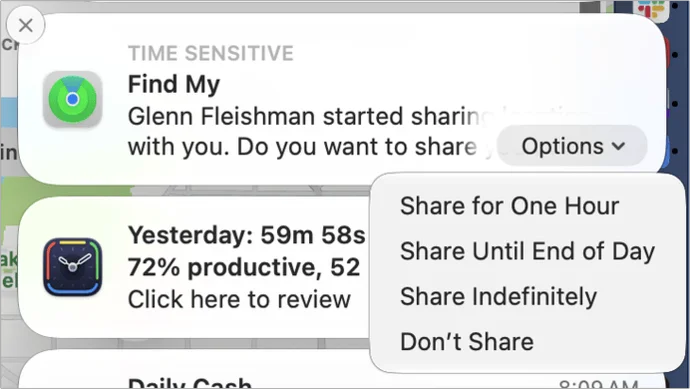
You can stop sharing at any time from a conversation’s Info pane by choosing Stop Sharing My Location. Version 27 adds another option: Hide My Location, available in Messages and Find My. It pauses location updates without notifying the other person, and you can resume sharing from the same controls. The recipient sees that your location is unavailable only if they check. That can give people a quieter way to manage access when their privacy or safety depends on it.
Sending a one-time pin
To send a pin over SMS/MMS or RCS, open a conversation on iPhone, iPad or Apple Watch, tap the plus button, and choose Location. Tap Send Pin in the location preview, then send the Apple Maps link labeled “Dropped Pin.” This gives the recipient a fixed place to open in Maps, rather than access to your changing location.
The key choice is whether someone needs to follow your trip or simply know where to meet you. Version 27’s custom timer makes temporary live sharing easier to tailor, while a pin remains the simpler option for a single location.
For more on Find My, location privacy and AirTags, see Take Control of Find My and AirTags, which the source says has been updated for version 27 releases.