Use One WhatsApp Account on Two Phones: Link a Companion Device
Link a second phone by scanning its QR code from your main device, then use the same WhatsApp account on both.
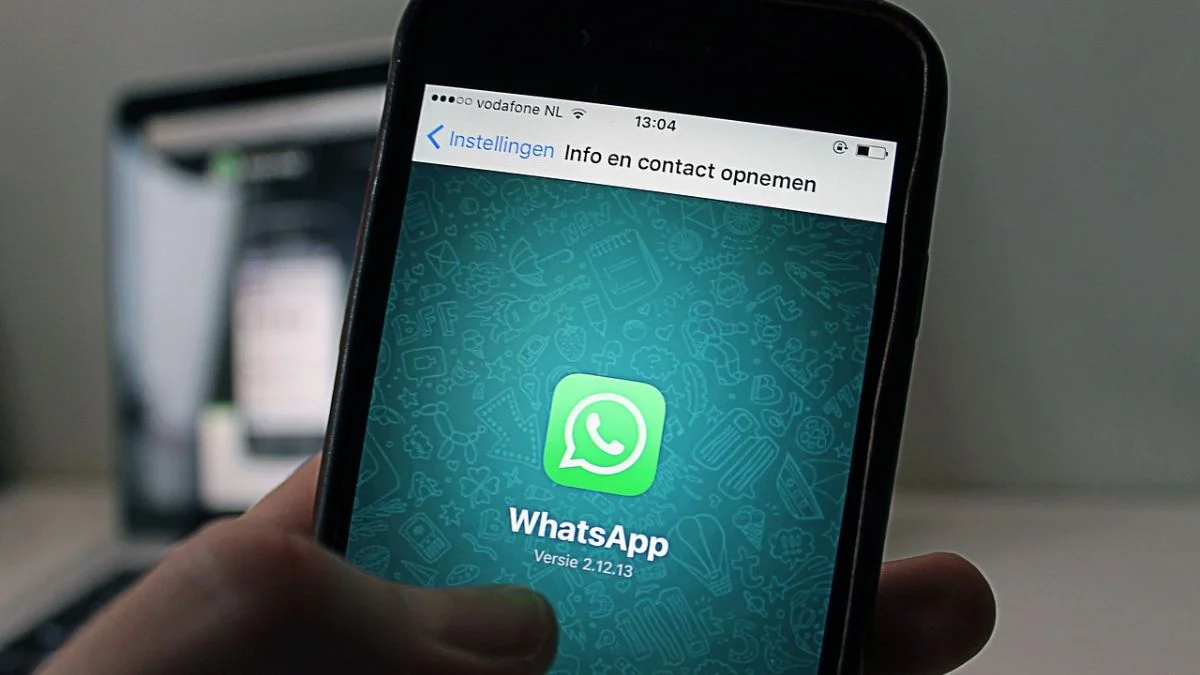
WhatsApp’s Companion Mode lets you use one account on two smartphones, with chats syncing between them. That can help if you switch between work and personal phones or want your account available on another handset. The setup uses a QR code: the second phone displays it, and the phone already signed in scans it.

After linking, you can send and receive messages from either smartphone. The main phone doesn’t need to stay connected to the internet for the second one to work, according to the source. WhatsApp also supports linking up to four additional devices to an account, though some features may behave differently across devices.
Set up WhatsApp on the second phone
Install the latest version of WhatsApp from the Google Play Store or Apple App Store on the phone you want to add. Open the app, but don’t enter your phone number. The setup needs to connect this phone to the account you already use, rather than register that number again.
On Android, tap the three-dot menu near the top of the screen and choose “Link Device.” Depending on the software version, the link option may appear directly on the setup screen instead. Menu placement can vary, so look through the setup choices if the three-dot menu isn’t visible.
Choose “Link as Companion Device.” WhatsApp will show a QR code on the second phone. Leave that screen open while you pick up the phone that’s already signed in; the code is the step that connects the two devices.
Scan the code from your existing phone
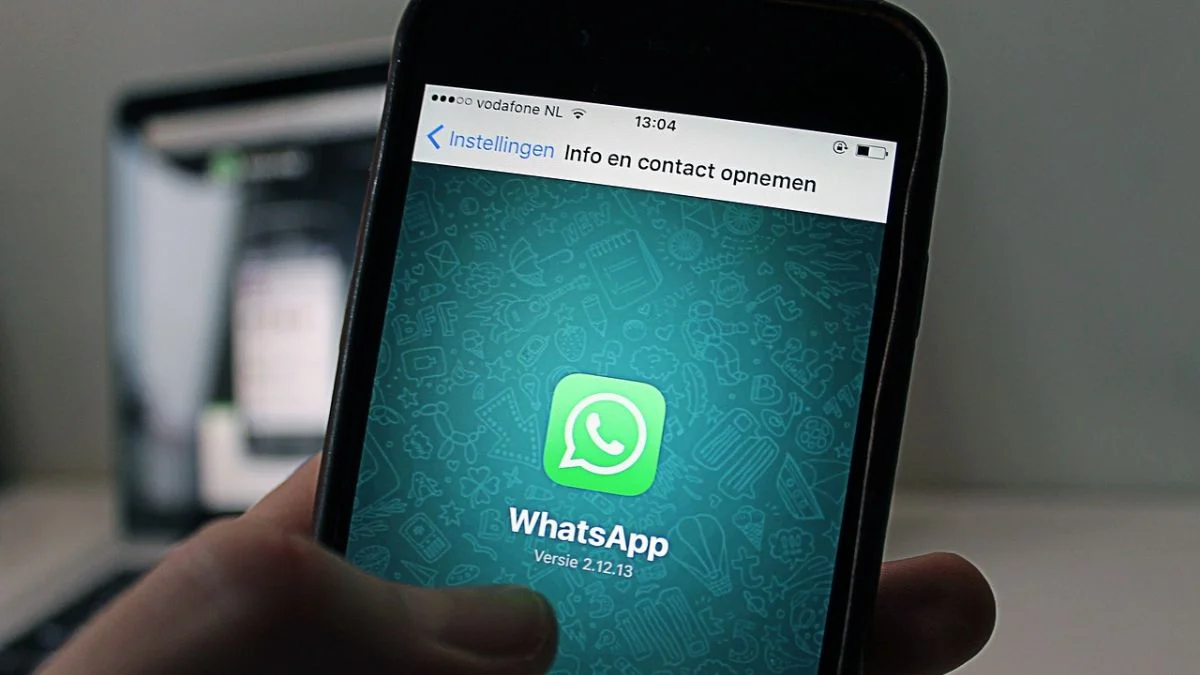
Open WhatsApp on your main phone and go to “Linked Devices” from the three-dot menu. Tap “Link a Device,” then use that phone to scan the QR code displayed on the second handset.
Once the code is scanned, WhatsApp will start syncing the account and conversations. Wait for the sync to finish before relying on the second phone for a chat you need to find. After setup is complete, both phones can access the same account and send or receive messages.
What to expect from a linked phone
Companion Mode is useful when carrying two phones is already part of your routine: you can keep the same WhatsApp account available on both without entering the number as a new registration on the added handset. It can also provide access to your chats on another phone when you want to use it for a particular task. The source doesn’t describe a separate backup process, so linking a device should be understood as access across devices, not as a substitute for backing up chats.
WhatsApp says chats remain end-to-end encrypted with multi-device use. Some functions can differ between phones, however. The source names real-time location sharing as one example, so don’t assume every feature will work identically on each device. If a particular tool matters to you, check it on the phone you plan to use.
The account can be linked to as many as four additional devices, according to the source. That gives you room to add more than one phone or other supported devices, but each additional connection still needs to be set up through the linking process. Keep track of which devices you’ve connected, especially if you stop using one of them.
Before you start
Have both phones nearby: one needs to display the QR code, and the other needs to scan it from WhatsApp’s “Linked Devices” menu. Make sure the app is up to date on the phone being added, since the available setup wording or menu location may depend on its software version. If you can’t find the companion option, check the initial setup screen and the three-dot menu before proceeding.
Once the conversation sync is complete, try sending or receiving a message from the second phone to confirm it’s ready for everyday use. Companion Mode is a straightforward way to keep one account accessible on two smartphones, with the main caveat that some features may vary between them.
Also See: MediaTek Dimensity 9600 Pro Chipset Launched: Check Features, Performance and Supported Phones