Apple HomeView Hands-On: A More Useful Smart Display for Apple Homes
HomeView brings Apple controls, personal information and music to a shared screen, but its value depends on Siri delivering reliably.
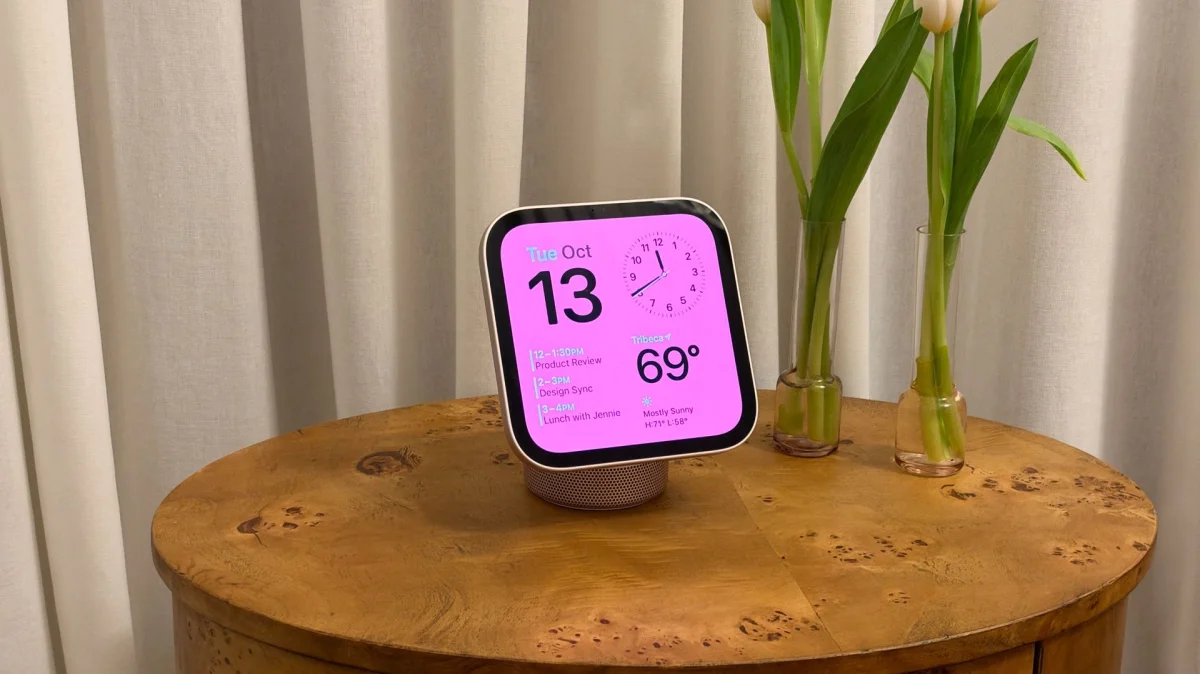
Apple HomeView’s strongest idea is that a smart display should make an existing connected home easier to use, rather than give its owner another screen to manage. After more time with the device in Apple’s demo space, I can see how its mix of home controls, personal information, music and Siri could suit households already using Apple products. I haven’t tested it at home or spent enough time with it for a full review, though, and Siri’s reliability remains an open question.
HomeView arrives alongside refreshes to the HomePod mini and Apple TV 4K, which are also set to bring Siri AI to more places around the home. For Apple users, the bigger question is whether a dedicated display can tie those devices and the rest of the company’s services together in a way that’s useful day to day.
That’s a real gap in my own setup. I use HomePods, HomePod minis and Apple TV 4Ks for things like timers, quick questions, calls and media, but they don’t make the home feel like one connected system. I’ve also tried Echo Shows, Nest Hubs, cameras, bulbs and sensors. None has become a natural part of my routine, partly because the experience sits outside the Apple services I already use.
A shared display that fits an Apple household
HomeView’s appeal starts with reducing the setup work that can make a smart display feel like one more project. With an Echo Show or Nest Hub, Apple users may need to move photos to another service or work around differences in calendars, calls and music. Those products can be useful, but connecting them to the devices and services a household already uses can take effort, and then someone has to maintain that setup.
Apple’s display could make more sense for people who already know the company’s software and want a common place to check the weather, manage accessories or see what’s next on the calendar. It can recognize up to six people and show each person a tailored account view, while keeping personal information private. The iPhone also helps HomeView recognize who’s nearby, so the display can bring forward the right person’s details.
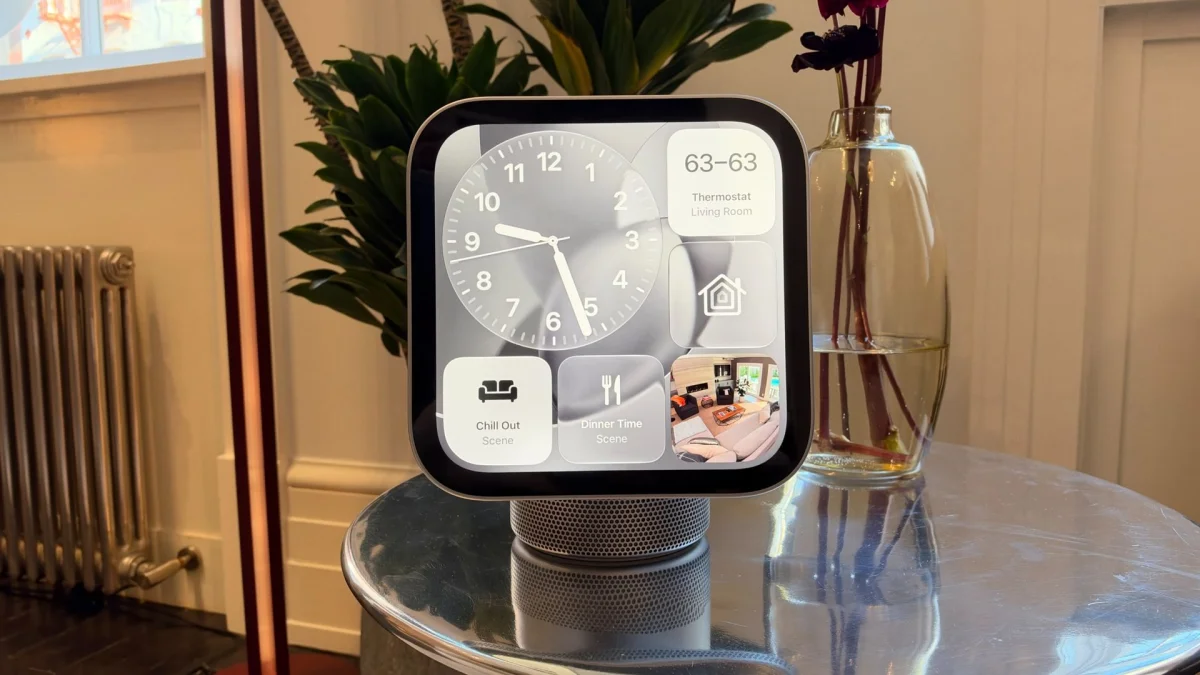
That shared approach matters for families, friends or parents who might otherwise need separate devices or accounts to make a screen useful. During my demo, I could imagine a home screen with thermostat controls, weather, a rotating photo selection and a music playlist. Those pieces are more valuable when they appear together without requiring everyone to learn a different platform.
Apple’s privacy focus also shows up in small interactions. If someone opens Messages, replies and walks away, HomeView locks the app when another person approaches. It’s a practical safeguard for a screen placed in a shared room: personal information can be available to the person using it, then hidden when the audience changes.
Familiar faces, with a purpose-built interface
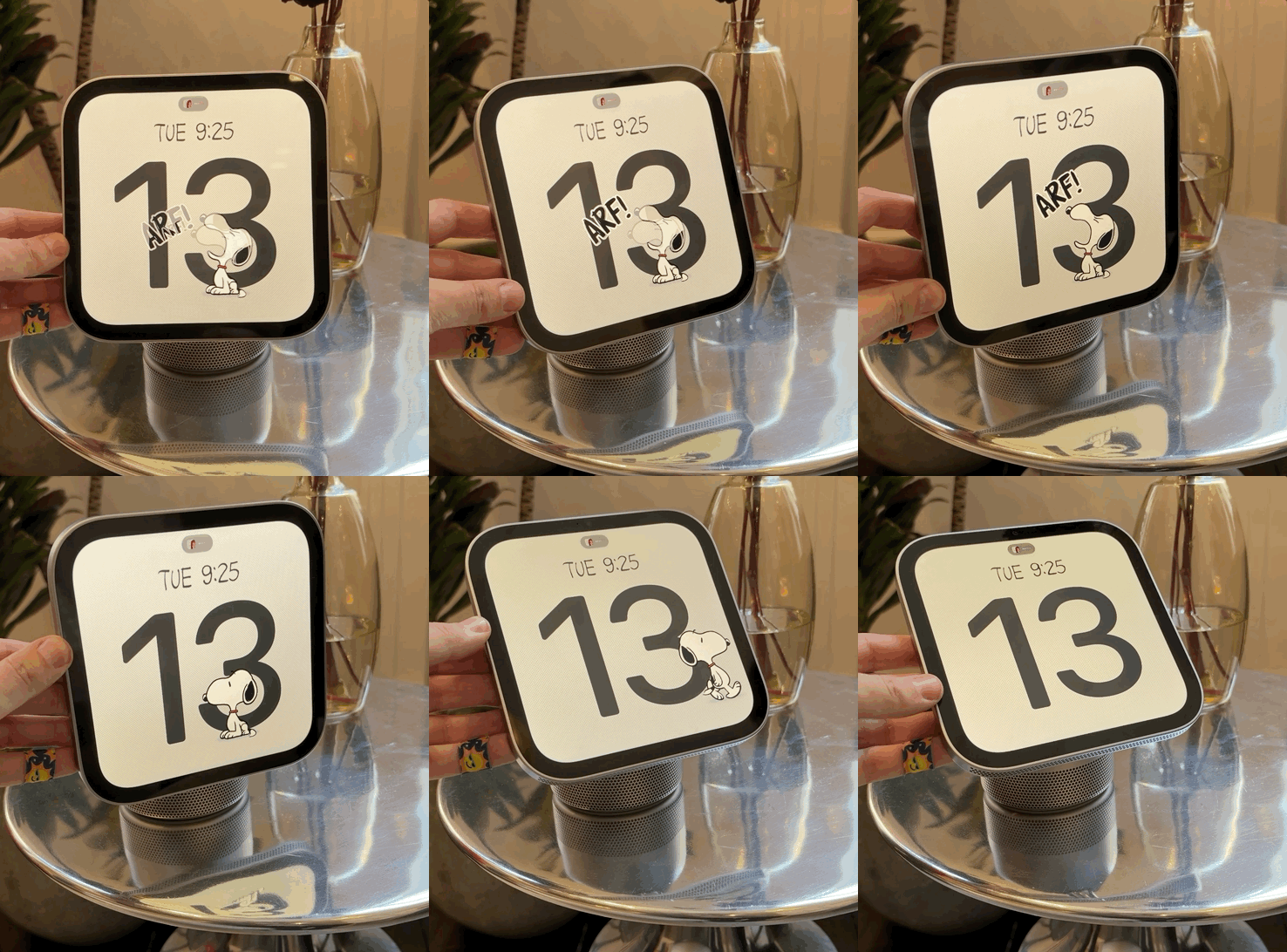
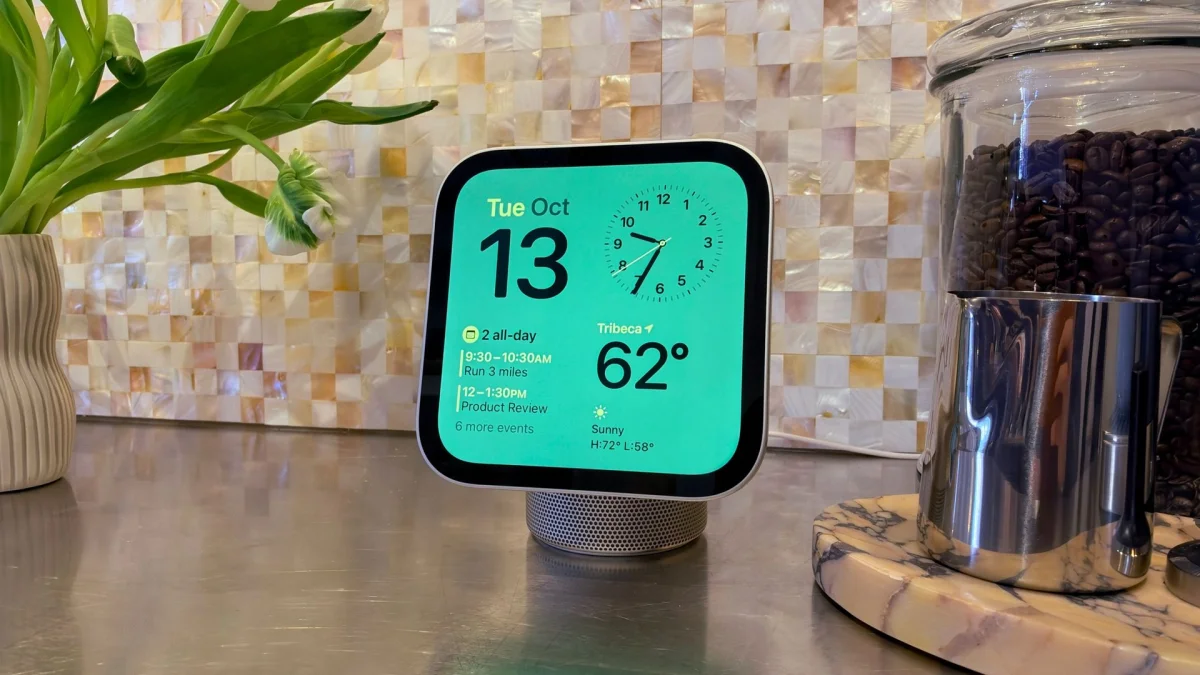
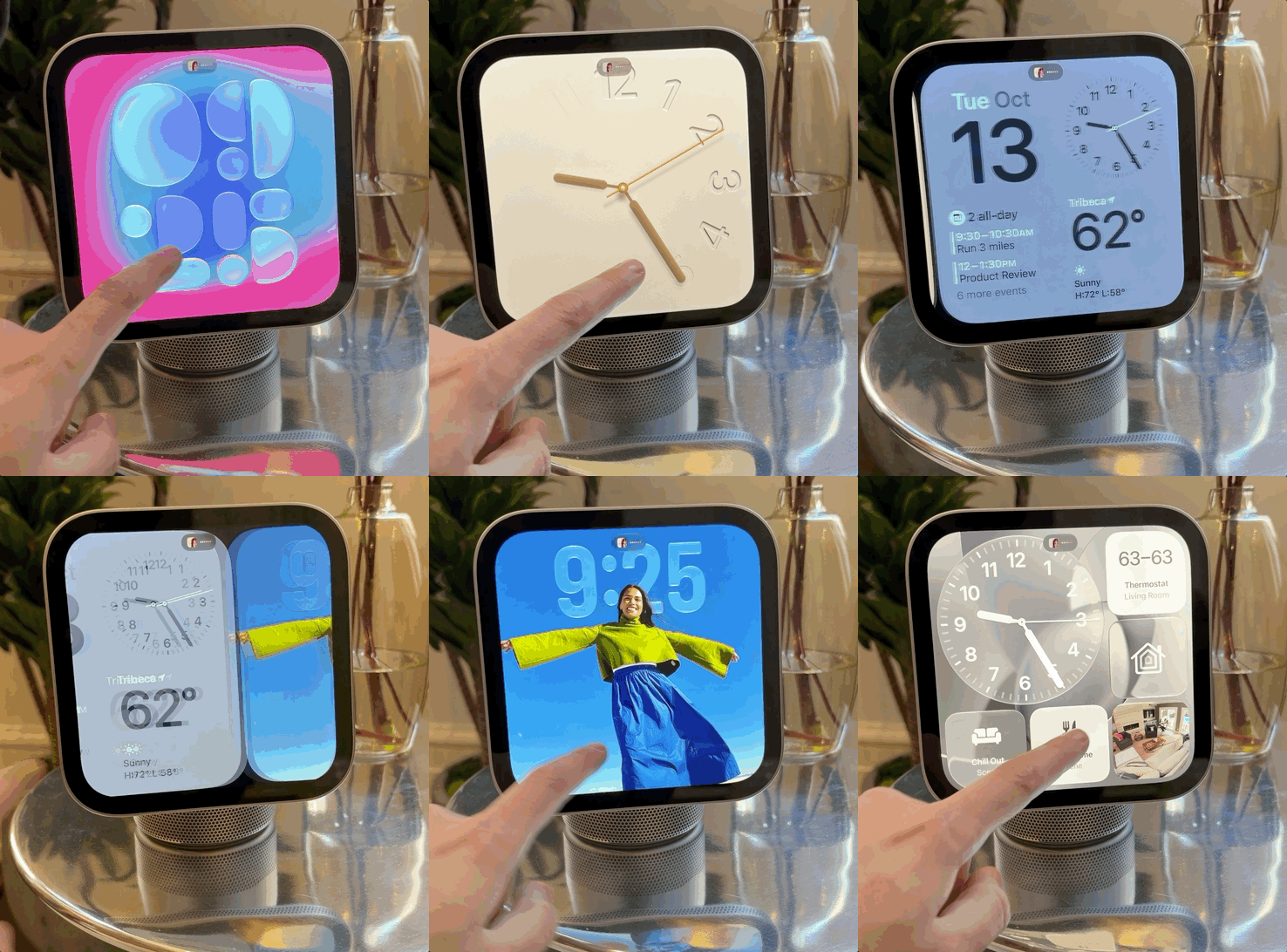
The first thing I tried was swiping through HomeView’s customizable display faces. The comparison that came to mind was an Apple Watch face scaled up for a room. That familiar design language makes the interface easy to understand, while the larger screen gives the widgets, or “complications,” more room to show useful details.
One face features Snoopy and Woodstock alongside the time, weather and an upcoming calendar event. It’s a playful option that still gives the screen a job. More functional faces can put calendar entries, reminders and weather information in easy view. The choice is less about decoration than deciding which details should be visible at a glance.
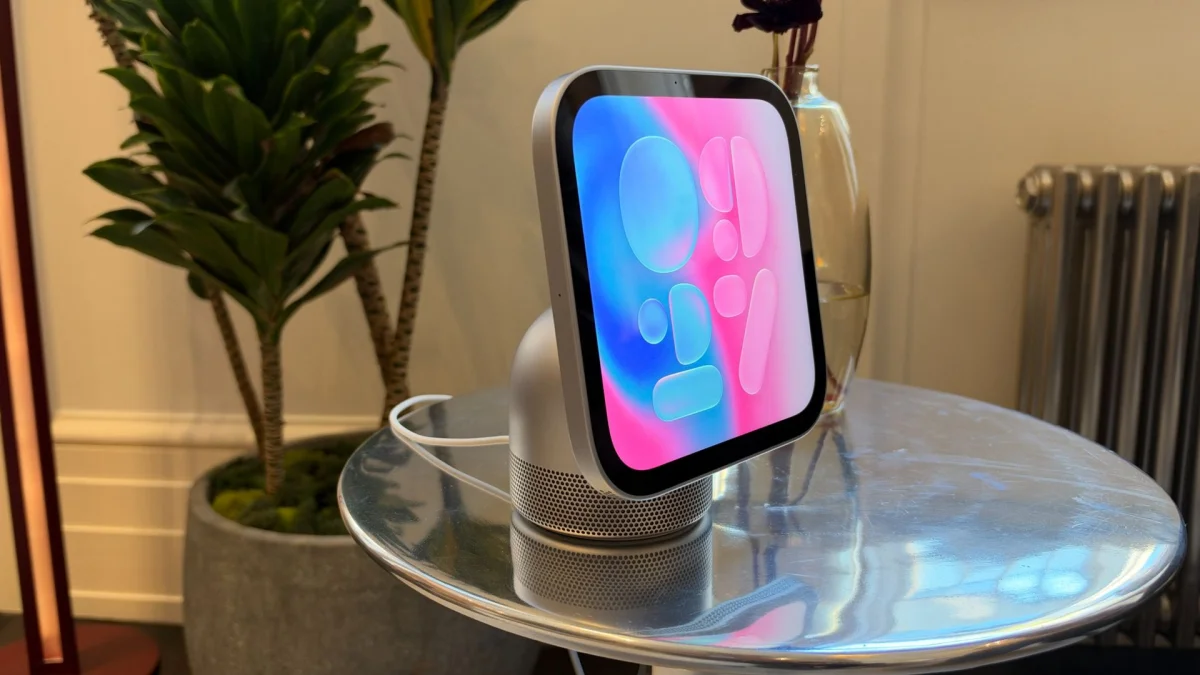
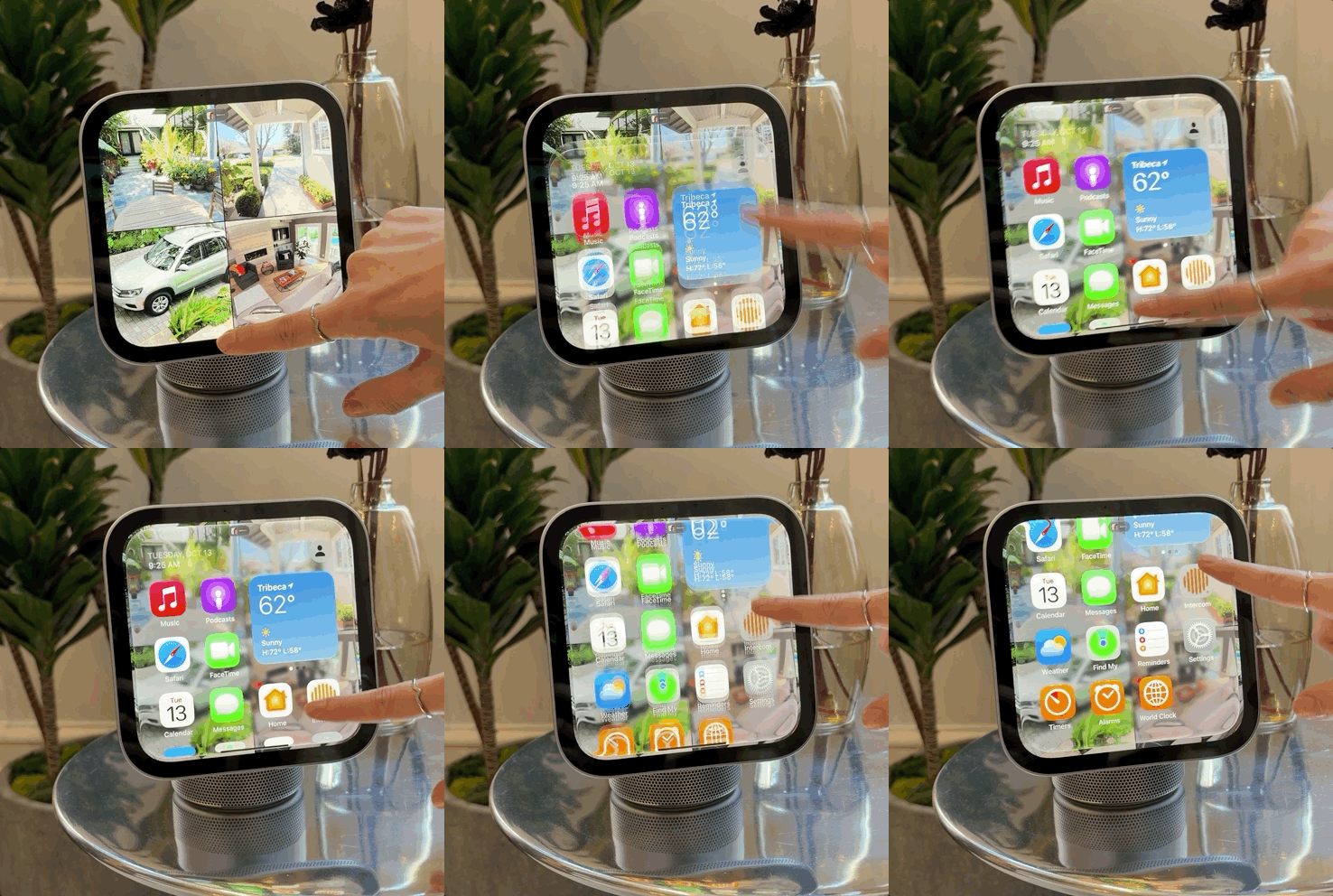
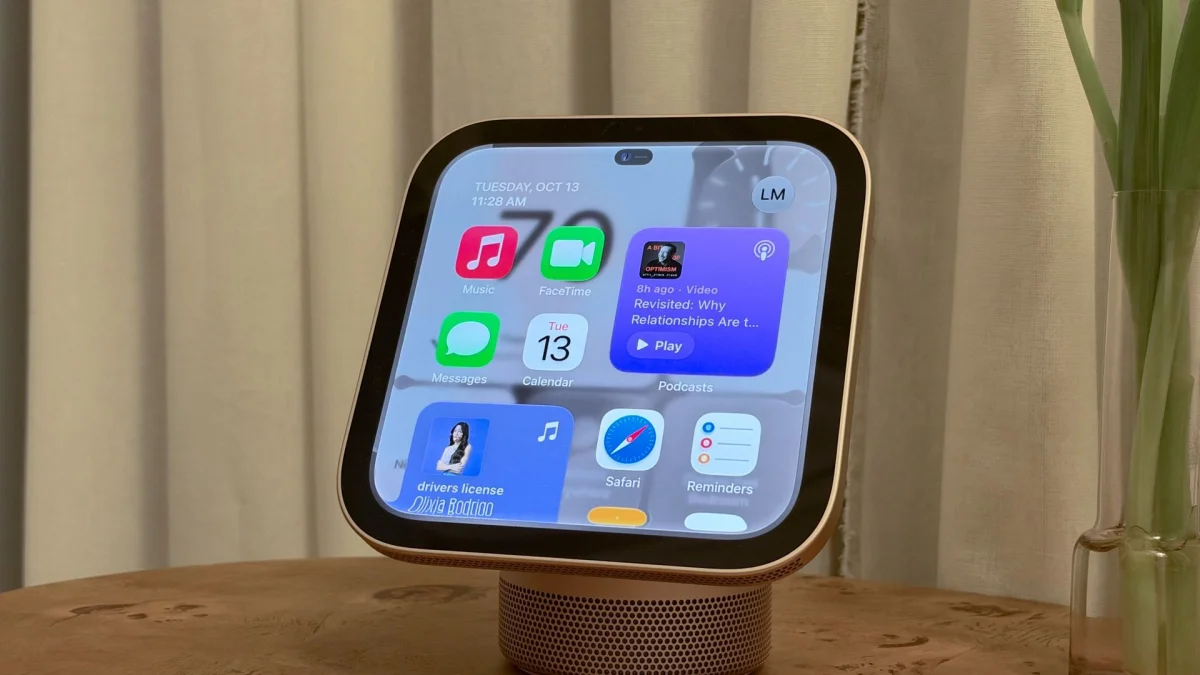
Swiping beyond the faces opens the home screen, while a swipe up reveals an App Drawer. The interface doesn’t copy iOS, iPadOS or watchOS directly; it borrows familiar elements and reshapes them for a screen meant to be checked throughout the day. Larger icons and glanceable widgets suit that role better than an interface built for long sessions.
There’s no App Store, and that restraint seems sensible for a household hub. HomeView shouldn’t need to become another device competing for attention. Apple’s built-in selection includes Home, Intercom, Music, News, Photos, Safari, FaceTime, Messages, Calendar, Alarms, Timers, Find My, Podcasts, Reminders, Settings and Weather.
Apple can also bring compatible experiences over from iPhone, including Apple TV, Audiobooks, Apple Music Classical and News. These may function as extensions of the phone rather than fully independent HomeView apps. Developers can’t create dedicated apps for the display, so compatibility with third-party services shouldn’t be assumed. Spotify, for example, isn’t something I’d expect to see until Apple or its developers confirm support.
That leaves a more curated set of uses than a general-purpose tablet, but that could be the right trade-off. A short list of useful services can make the screen easier to live with, provided it covers the activities a household actually wants to do there.
Home controls and music are built into the flow
HomeView gives Apple’s Home app a layout suited to touch. Controls are larger, key information stands out, and the interface lets people move elements around or add them to a display face or home-screen widget. Someone who wants a few favorite accessory controls can keep those close; someone who wants a broader overview can arrange the screen accordingly.
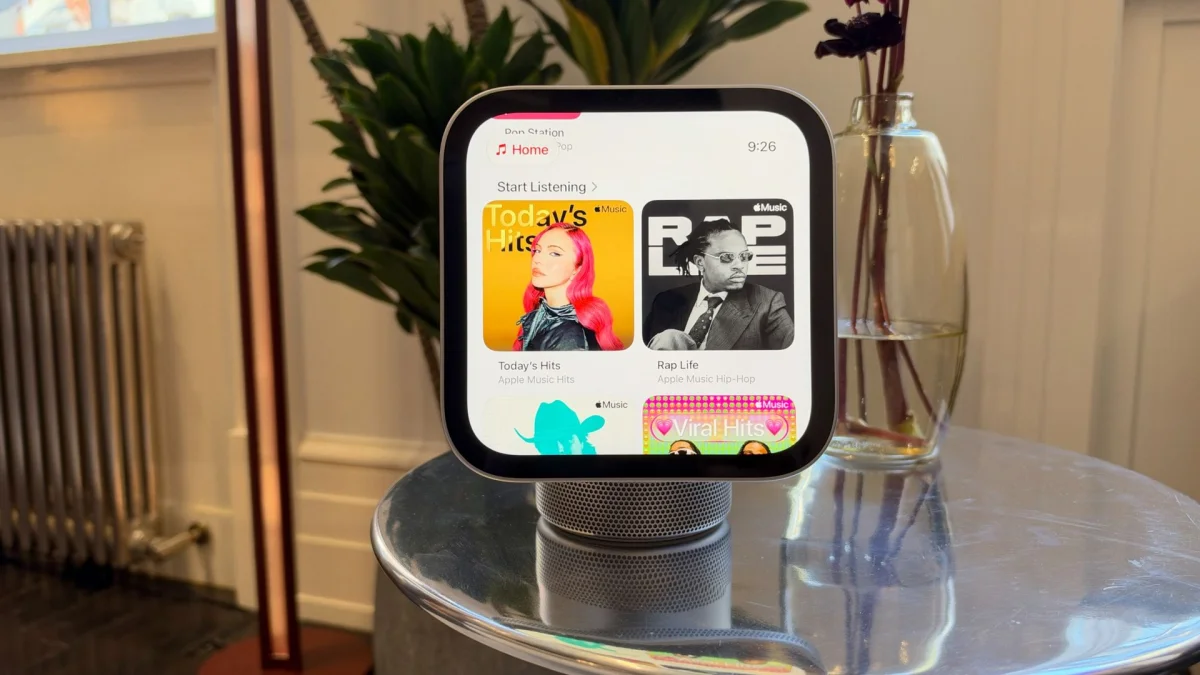
Music is one of the clearest demonstrations of the display’s strengths. Album artwork looks good, and lyrics can follow along in real time. The speakers sounded clear and lively in the demo, though they didn’t reach the volume I’d hoped for. That’s an early impression from Apple’s demonstration space, rather than a judgment from listening at home.
Playback also stays within reach when you switch tasks. If you move to another app, such as a cooking feature, a compact control appears at the top of the display, much like a Dynamic Island. You can manage the music without returning to its full screen. It’s a small detail, but it makes the device feel more like one interface than a set of unrelated apps.
The display is designed to be used by touch or voice. Its screen reaches 500 nits of brightness and can dim to 0.3 nits, which Apple describes as the lowest brightness it has engineered for a display. Four microphones are intended to pick up speech while reducing background noise, for FaceTime calls and Siri requests.
Siri is the feature to watch
HomeView is designed with Apple’s new Siri AI capabilities in mind, and those could determine how useful the device becomes. In my short trial, Siri handled basic home controls, routines and music, and attempted more involved requests. I sometimes had to repeat myself, so I’d want to see more before relying on it for everyday tasks.
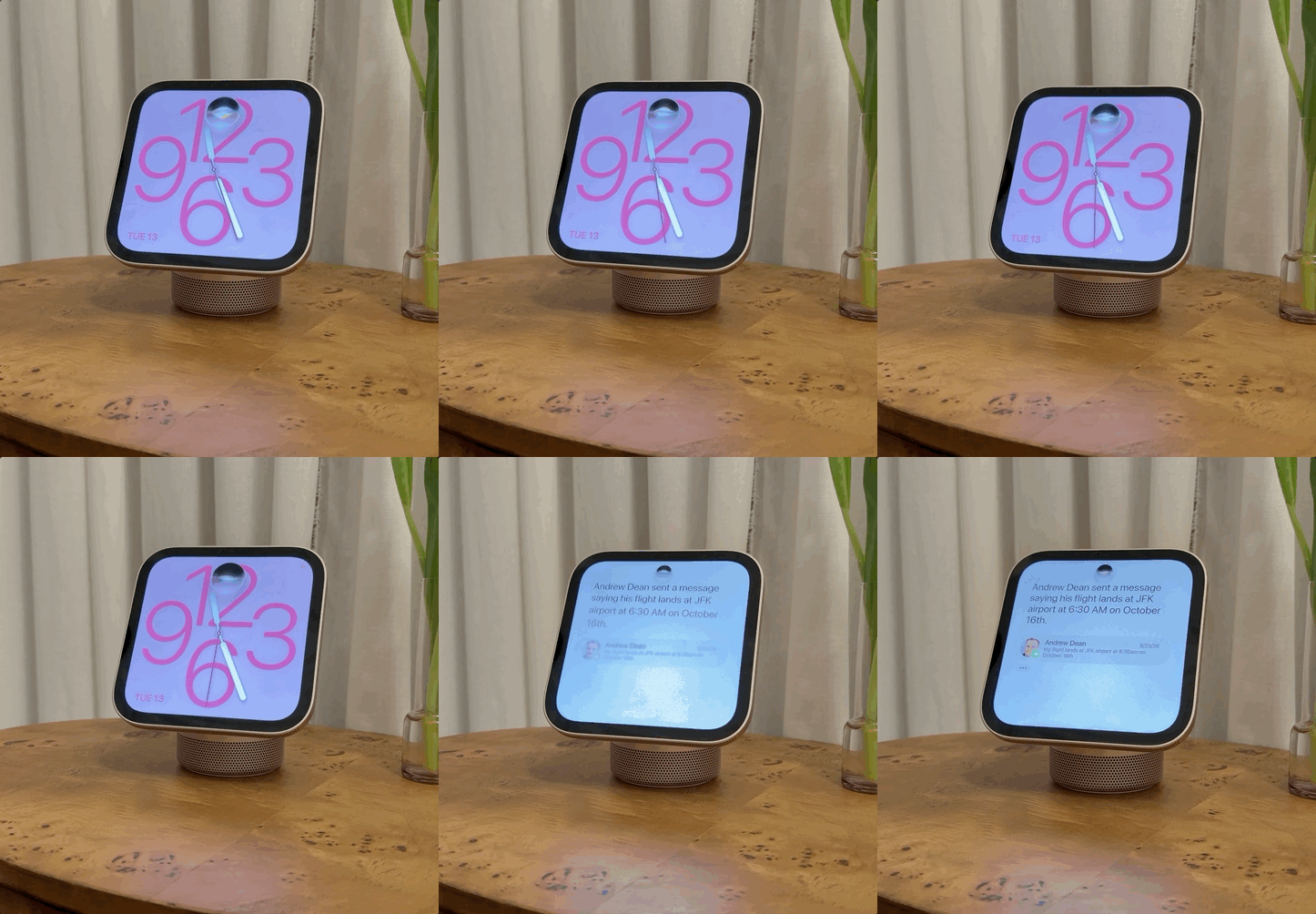
A demonstration showed what the more ambitious version could look like. Siri was asked when someone would land at an airport, then when that person might get home by train. After a few seconds, it responded using information from Messages, its broader knowledge and estimated transit times. It was a brief demo, but the ability to connect details across a conversation and a practical follow-up is more compelling than a display that only answers isolated questions.
I can picture similar requests being useful while cooking or doing something else around the house: asking Siri to identify a song a friend recommended, for instance, without having to pick up an iPhone. The promise is that HomeView can bring together information, services and connected devices that are already part of an Apple household. If Siri can do that consistently, the display could offer more than a convenient panel for lights and timers.
That integration extends to Handoff. Tap an iPhone against the front of HomeView and you can transfer what you’re listening to. The same idea applies to calls, episodes and Safari pages, letting you continue on the home display rather than start over. For people moving between devices throughout the day, that could be a more natural interaction than opening an app and searching for the same content again.
Designed to fade into the background
HomeView doesn’t have notifications, which helps it feel like an ambient display instead of a new source of alerts. You can glance at it when you need something and leave it alone when you don’t. It feels more purposeful for that role than using an iPhone’s StandBy mode as a permanent household screen.
Control Center remains accessible by swiping down from the top-right corner. A built-in 12-megapixel camera recognizes users and serves as the FaceTime camera. It could also make the display useful as a mirror, and the hardware leaves room for features such as Photo Booth to find a place on the device.
HomeView can sit on a speaker base or mount on a wall, with the same interface in either setup. The wall option loses the base’s speakers and requires a separate mount, which makes it less appealing to me on value. A wall-mounted display could still work well near a front door as a quick control panel, especially for people who already use a mounted iPad to manage their home. The speaker-base version is easier to imagine on a kitchen island or side table.
I’m more convinced after using HomeView, but a demo can’t show whether it will fit into a real household’s routines. I still need to try it at home, where setup, speaker performance and Siri’s consistency will matter more than a polished walkthrough. For Apple users looking for a shared way to manage the home and pick up everyday tasks, the concept makes sense. The next test is whether Siri can reliably connect the pieces that make the display worth having.
HomeView’s clearest advantage is how closely it’s meant to fit the devices and services Apple owners already rely on. If that connection works as shown, it could make a home feel more joined up without asking people to spend their day interacting with another screen. Siri will decide how much of that promise holds up beyond the demo.