Why Apple Notes Treats Markdown as an Import and Export Format
Notes can import and export Markdown, with paste and copy tools in macOS 27. Its rich text design explains why direct Markdown editing still isn't part of the app.

Apple Notes has learned to move Markdown in and out, but it still doesn’t let people write in Markdown directly. That distinction makes sense once you see what Notes is built to do: it displays formatted text as you create it, while a plain text editor leaves formatting decisions to you. The new tools make Notes more useful to Markdown users, even if they don’t turn it into a Markdown editor.

Markdown has become a familiar way to write for the web. Its simple marks, such as two hash signs before a heading, can stay readable as plain text and also be converted into formatted content. Many writing apps and content-management systems accept Markdown directly, sometimes interpreting its conventions without making a fuss about them.
Notes follows a different model. It’s a rich-media note-taking app, with formatting and other content presented in the note itself. That puts it closer to a word processor than to a plain text tool such as BBEdit or TextEdit in plain text mode. The distinction helps explain why Markdown is available at the edges of Notes, through import, export, copying and pasting, rather than as the format you edit on screen.
Formatting on screen has a different purpose
Seeing text take shape as you type has been part of personal computing for decades. The Mac made that approach more accessible, but it wasn’t the first system to display an approximation of a finished document while it was being created. Earlier typesetting work could involve coding a document on a monochrome screen and mentally picturing how the instructions would look once set in type.
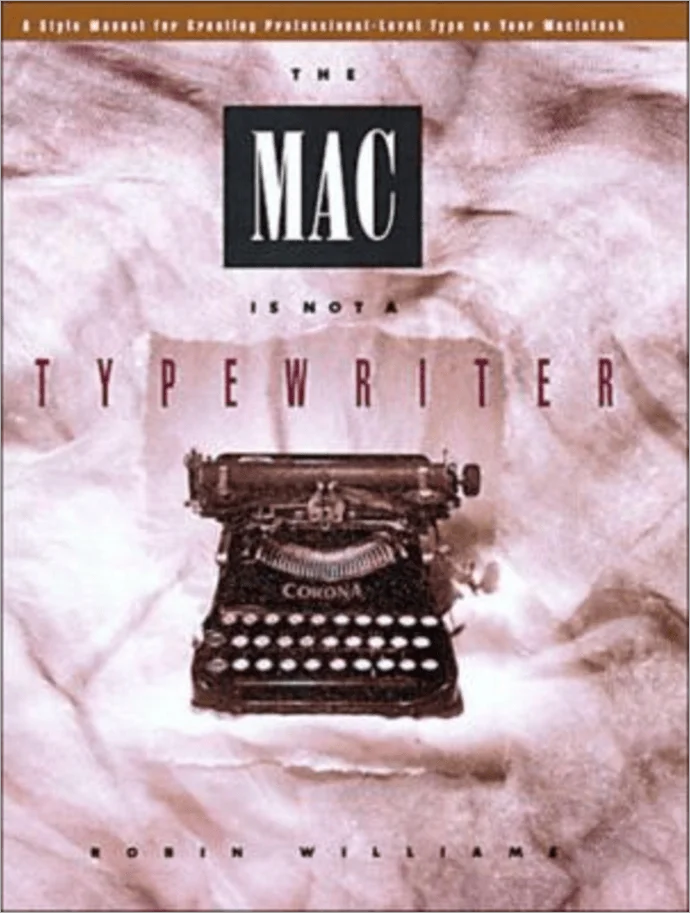
Robin Williams’s The Mac Is Not a Typewriter, published by Peachpit Press in 1989, made a related point about typography. A typewriter’s keyboard encouraged conventions such as straight quotation marks and double hyphens. A Mac could produce typographic quotation marks and long dashes directly, so writers no longer needed to use those keyboard-era stand-ins in their finished documents.
Markdown came later, with a different aim. John Gruber’s Markdown specification offered a lightweight way to write text that remained legible in its unformatted form while also converting into rich formatting. Its core conventions have stayed recognizable even as extensions have added features. Some versions support footnotes, for instance, but Notes doesn’t render those extensions when it imports them.
Notes isn’t a plain text editor
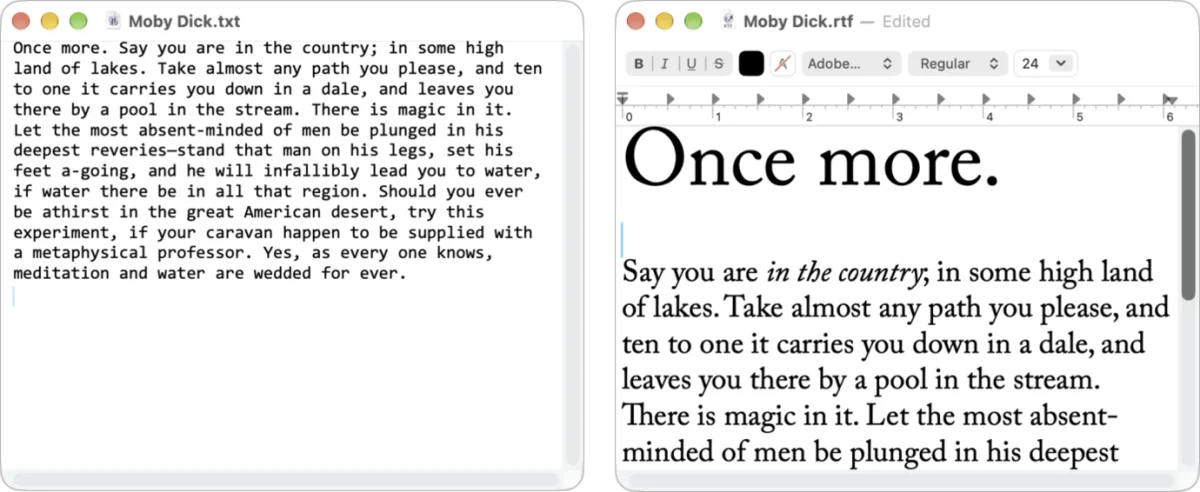
It helps to think of these apps by the work they’re designed to do. BBEdit and TextEdit in plain text mode give you a blank text surface. Writers can use Markdown there, but the formatting marks remain part of the text until another app interprets them. Notes instead shows rich text, including headings, lists, bold and italic styling, alongside other material. Pages offers still more control over document layout.
TextEdit is an exception of sorts because it can work in either plain text or rich text. Notes doesn’t offer that same split personality. It’s a place to collect and arrange formatted notes, not a blank page that waits for Markdown syntax to be translated. That’s why Markdown editing may feel like a natural fit to people who write for the web, yet still sit outside Notes’ central design.
What Notes can do with Markdown
In Notes on iPhone, iPad and Mac with version 26 releases, Markdown files can be imported and notes can be exported as Markdown. On a Mac, choose File > Import Markdown, select a file and click Import. On iPhone or iPad, locate the file in another app or in Files, share it to Notes, then tap Import. Notes brings in referenced images when it can.
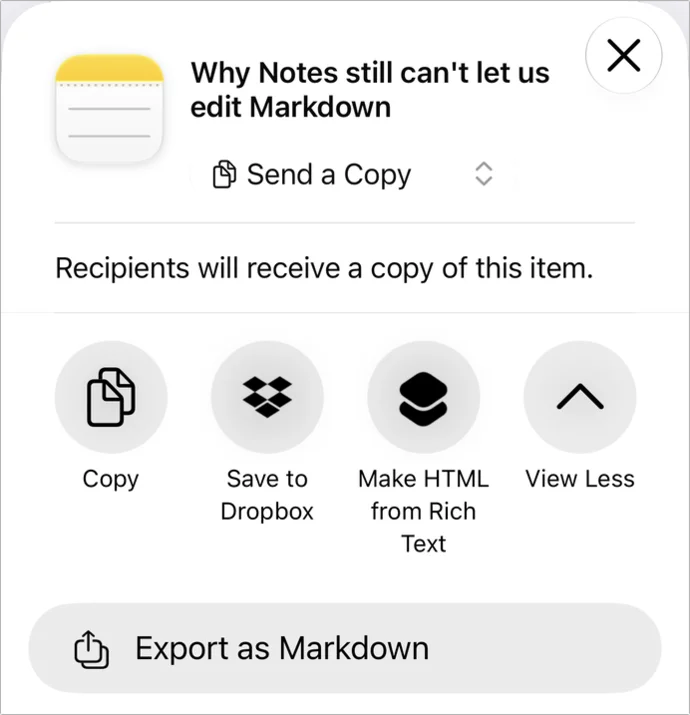
To export on Mac, select a note and choose File > Export To > Markdown. On iPhone or iPad, touch and hold a note in the list, tap Share, then choose Export as Markdown. If that action isn’t shown, it can be added through Edit Actions in the share sheet. Export creates a folder with the Markdown text and, when the note contains images, an Attachments folder with those files.
The result can preserve Notes’ formatting well, making the exported file useful in an editor or renderer that supports Markdown. But the format support has limits: Notes imports some extensions, such as footnotes, without displaying them as formatted footnotes.
macOS 27 Golden Gate adds two more options in the Edit menu. They aren’t available yet in iOS 27 or iPadOS 27, and they don’t appear in the menu opened by Control-clicking or right-clicking a note.
Paste as Markdown takes Markdown copied from another app or a website and inserts it into Notes as rich text. Place the cursor where the content should go, or select text to replace, then choose Edit > Paste as Markdown. Copy as Markdown converts a selected range, or the whole note, into Markdown on the clipboard. It copies text only; images aren’t included.

These additions make Notes a more convenient stop for Markdown users who want formatted notes or need to move text between apps. They also draw a clear line around the app’s role: Notes can translate Markdown into its own rich text and back, while editing remains a formatted, on-screen experience.