NameQuick Uses AI to Give Mac Files More Useful Names
NameQuick renamed ten development screenshots with descriptive titles, and offers folder monitoring, multiple AI options and 30 free renames.

File names only help when they tell you what a file contains. NameQuick, a Mac app developed by Josef Moucachen, uses AI to inspect images and documents and suggest names that make them easier to find. In a hands-on trial with ten development screenshots, it produced useful descriptions, though a couple needed a human check.
From simulator labels to searchable names
Conventional renaming tools handle predictable jobs well: adding dates, replacing text or numbering files. NameQuick takes a different route, drawing on the contents of a file to suggest a more descriptive name. A scanned electricity bill might get a name that identifies the document and date; a photo might be labeled for what appears in the image.
To try that approach, I fed it ten screenshots from Apple’s iPhone and iPad simulators. The original names included device details and capture times, such as “Simulator Screenshot - iPad Air 11-inch (M3) - 2026-09-17 at 17.30.10.png.” That information can help identify when and where an image was made, but it doesn’t say what the screenshot shows.
NameQuick analyzed the first image and suggested a name. I could edit that suggestion before the app continued through the batch, then review the rest before applying any changes. The proposed names included “Yardages Bag Gapping.png,” “Guided Fitness Golf Mobility & Stretching.png” and “ForeThought Guided Practice Putting Foundations.png.” Those labels made the screenshots’ subjects clear without opening the files.
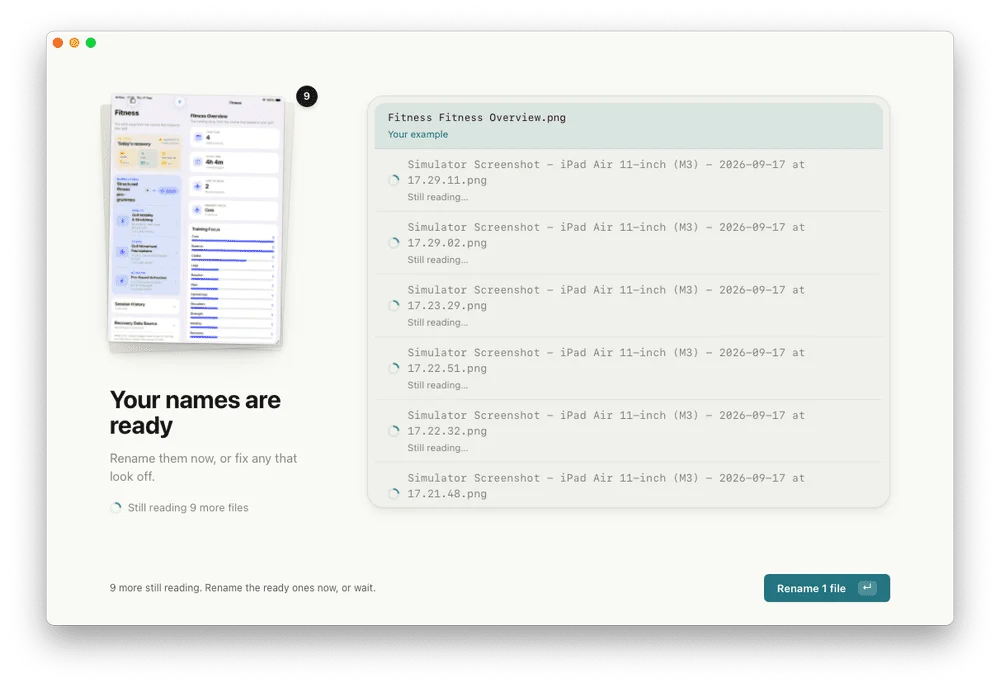
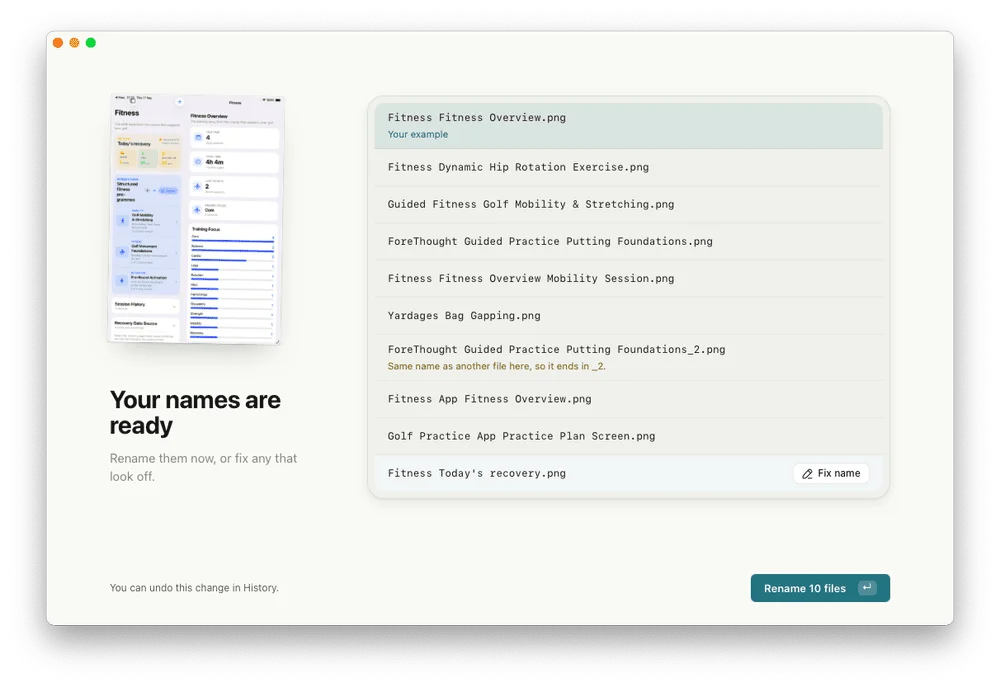
NameQuick presents proposed names for review before applying them to the screenshots.
The suggestions weren’t flawless. One image became “Fitness Fitness Overview.png,” and two screenshots received the same suggested name. NameQuick added “_2” to the second file to prevent a name collision. That handled the duplicate, but the repetitive wording is a reminder to inspect AI suggestions before changing a batch.
After I reviewed the list, the app renamed all ten files. The introductory managed plan showed 20 of its 30 free renames remaining. It then offered to monitor the Desktop for future files.
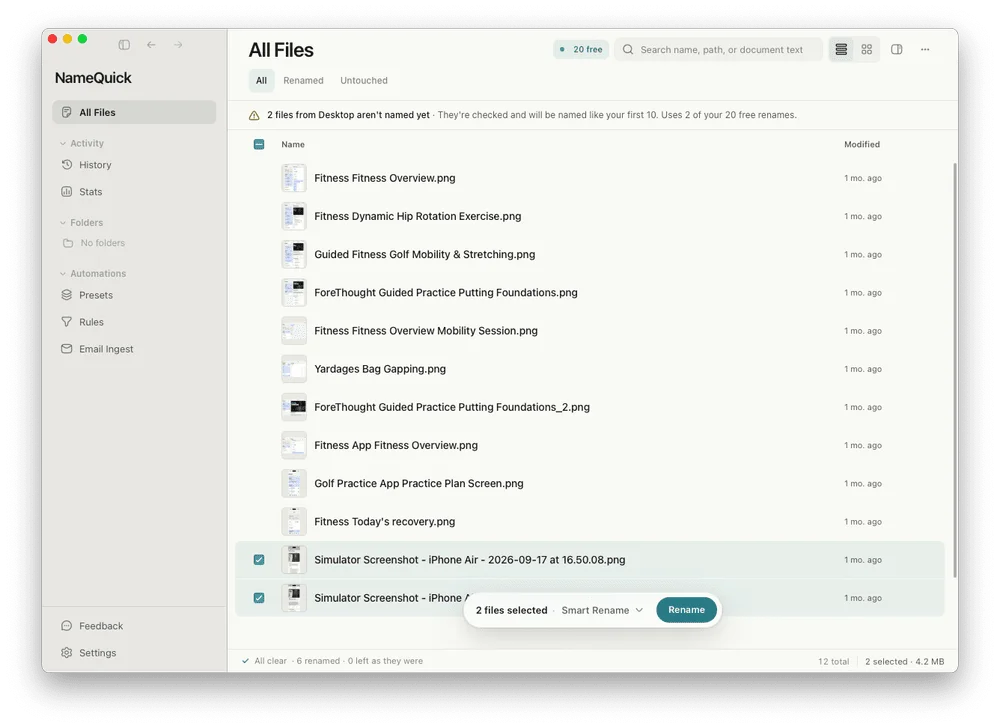
After renaming the ten screenshots, NameQuick offers to monitor the Desktop for incoming files.
Folder monitoring and review controls
NameQuick can watch selected locations, including Downloads, the Desktop and folders synced through iCloud Drive. Naming presets can help keep filenames consistent, while additional rules can sort files into folders and apply Finder tags.
For a watched folder, users can choose whether to process files already there as an initial batch or leave existing items alone and handle new arrivals. The app also lets users decide whether suggestions need approval or can be applied automatically. Review first is the safer fit when another app may rely on a file’s existing name; automatic processing may suit a workflow once its results have proved reliable.
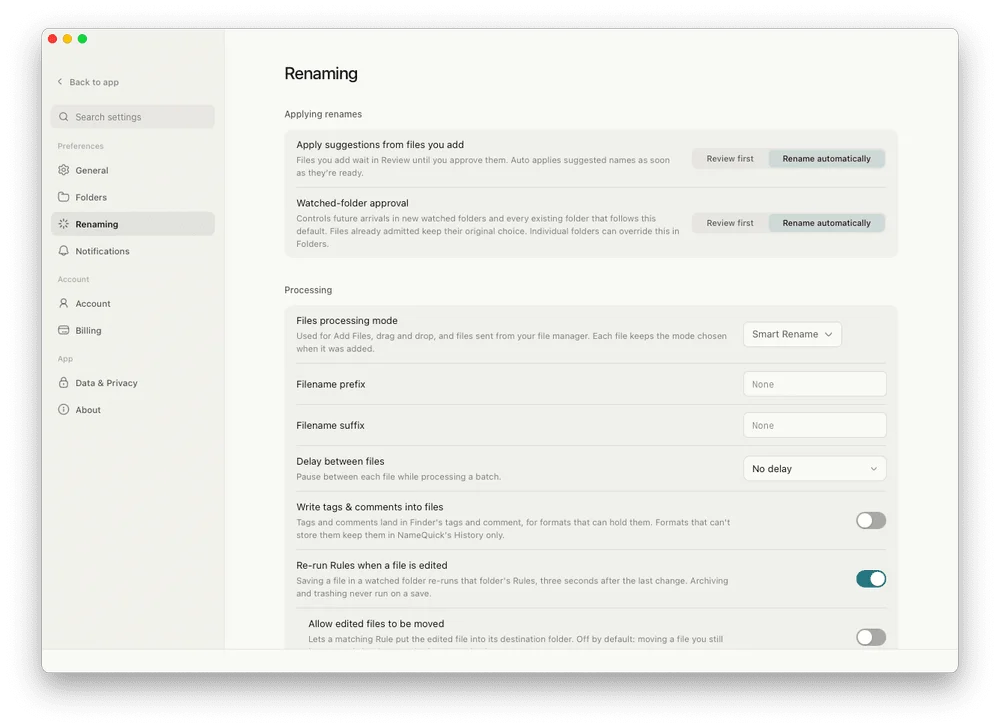
The preferences offer review-first and automatic processing, alongside controls for names and file handling.
An email integration can collect PDF attachments from approved senders and pass them into a watched folder. I didn’t test that feature, but it could help people who regularly handle invoices, statements or similar paperwork.
Choose where the AI runs
Setup offers a managed AI service or the option to connect a provider or model of your own. The managed service includes 30 free renames, with no email address or payment card required to start.
For a self-managed setup, NameQuick supports API keys from OpenAI, Anthropic and Google Gemini. It can also work with local models through Ollama and LM Studio, as well as Apple’s MLX framework on compatible Apple silicon Macs.
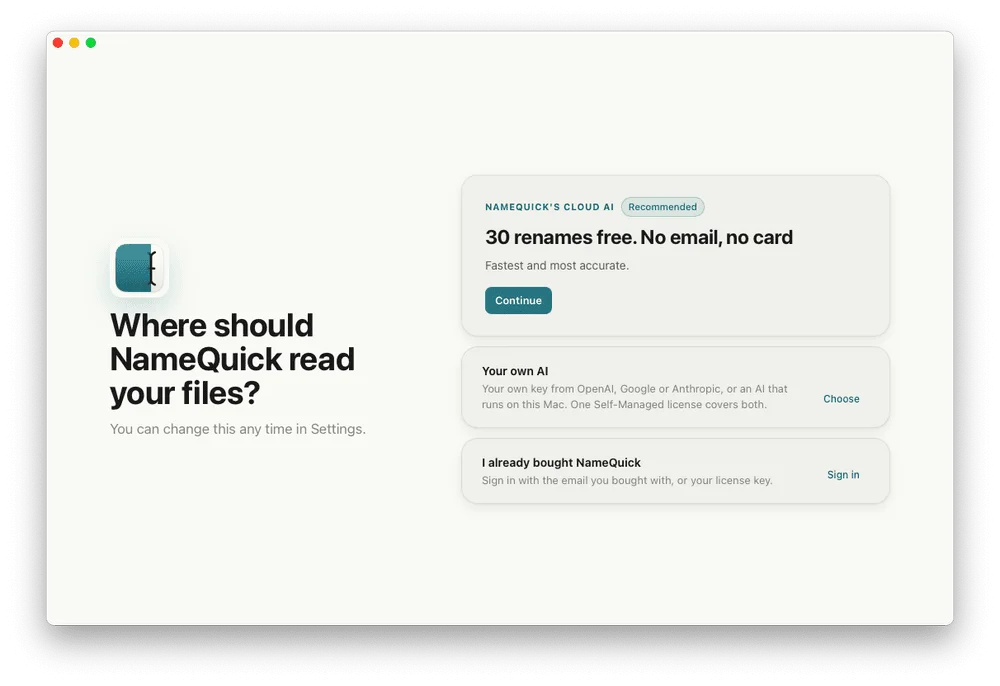
Users can choose NameQuick’s managed service, a cloud provider they connect themselves, or local models.
That choice matters for files containing private information. With a local model, file contents can be processed on the computer without being sent to an external AI provider. A user-supplied cloud API sends content to the selected provider; NameQuick’s managed option uses its own cloud processing service. Buyers handling sensitive documents should weigh that distinction when choosing a setup.
More file tools and pricing
The app goes beyond renaming, with content-based search, organizational presets, duplicate detection and a history of earlier changes. The duplicate finder identifies exact copies, while the history can reverse past renames when the files and their locations still allow it. I didn’t test these features extensively, so their usefulness in a larger filing workflow remains unverified.
NameQuick is also available for Windows, though its Finder integration and MLX support are specific draws for Mac users. After the 30 free renames, the Self-Managed licence costs $69 as a one-time purchase for one computer. It supports a user’s own API key or compatible local model; charges from an external AI provider are separate. The Managed subscription starts at $12 per month for 500 renames, and a pack of 500 managed renames costs $19 without a monthly subscription.
For a few occasional photo renames, Finder’s built-in tools may be enough. NameQuick makes a stronger case for people dealing with piles of screenshots, scans or incoming paperwork. My ten-file test was encouraging: the suggestions were descriptive and mostly useful, while the review step caught the rough edges. If you try it, start with a small batch and check the names before letting it handle a watched folder automatically.
Find out more: https://www.namequick.app/
Disclosure: NameQuick’s developer offered review access. The hands-on observations are based on my own testing, and the editorial opinions remain independent.
===END===