MikroTik hAP be³ Media First Look: Wi-Fi 7, 2.5GbE and a Hands-On Setup
MikroTik’s hAP be³ Media is running as an access point, with three Wi-Fi bands and five 2.5GbE ports. Early speed tests are only a starting point.
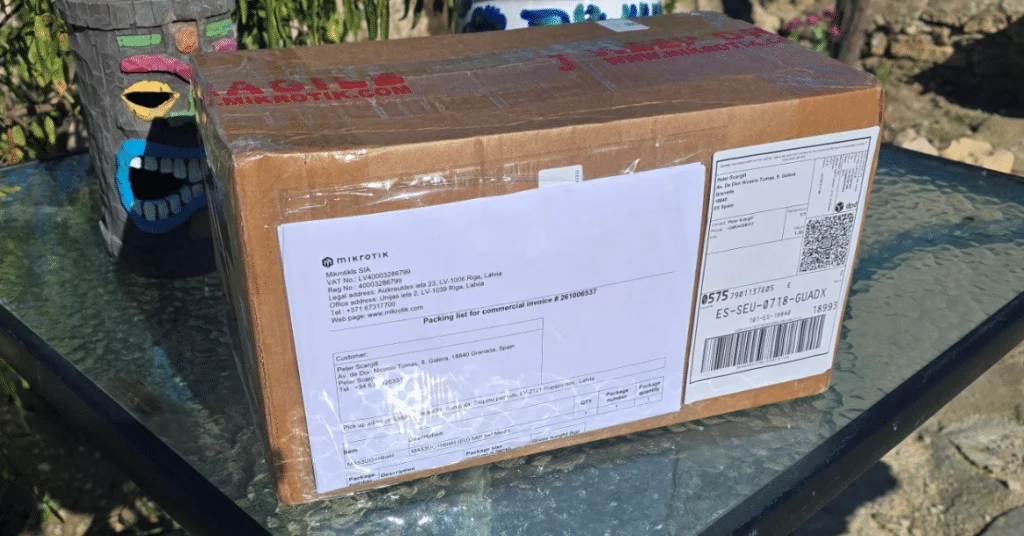
The MikroTik hAP be³ Media has the ingredients to do more than add Wi-Fi 7 to a home network: it combines 2.4GHz, 5GHz and 6GHz wireless, five 2.5Gb Ethernet ports, Bluetooth, Thread and RouterOS. My first look is about getting those pieces working alongside an existing router. Wireless performance and the broader feature set still need proper testing.
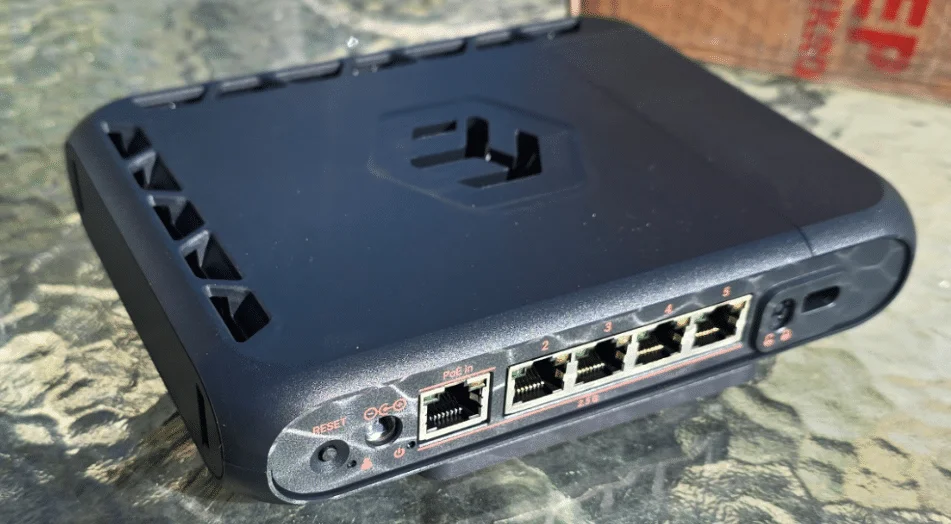
I started with an older MikroTik RB2011UiAS, which had been sitting in a cupboard before I brought it back into service. It still worked, but it lacked 5GHz Wi-Fi, let alone Wi-Fi 6 or Wi-Fi 7. That made a newer model an appealing follow-up. After I contacted MikroTik, a large box arrived in Spain from Latvia.
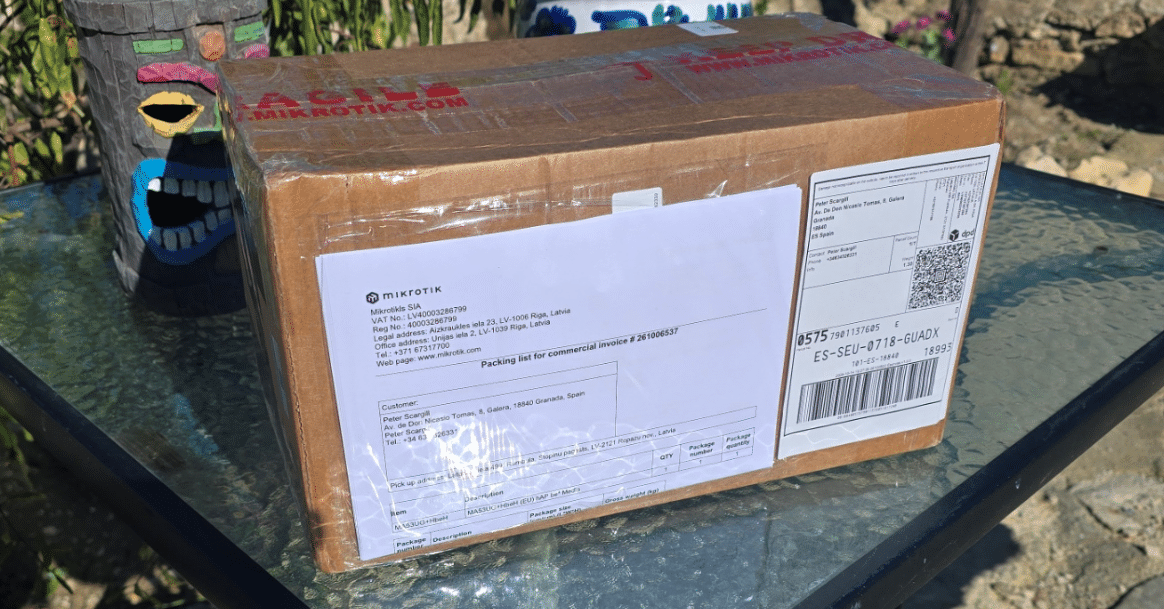
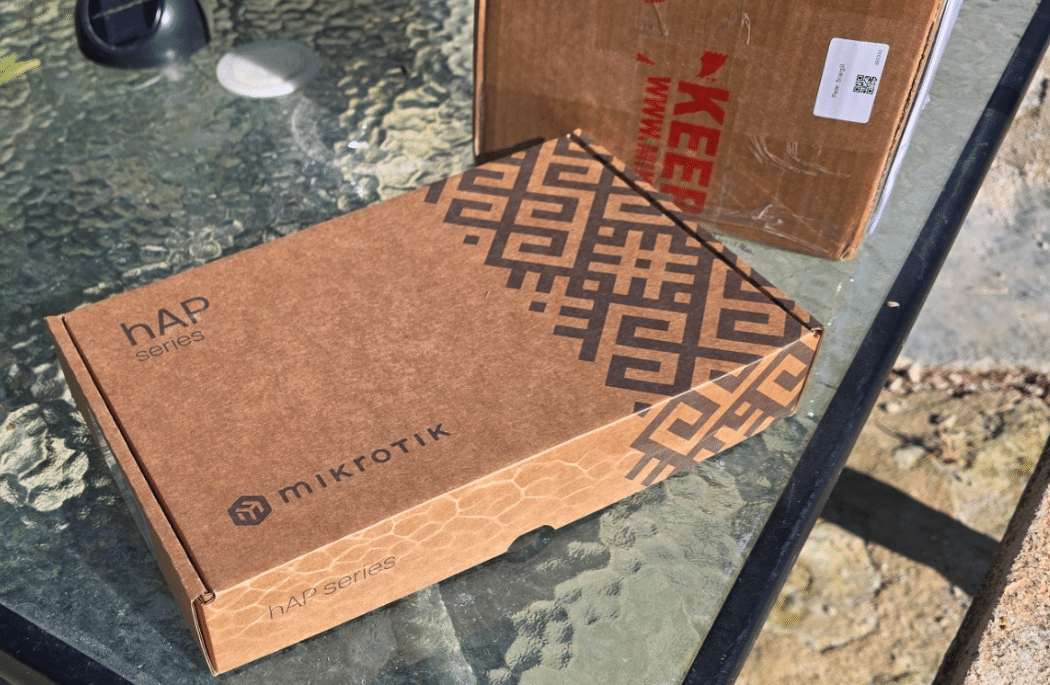
The outer packaging was much larger than the box holding the router and power supply. The hardware itself looks unusual, and its name varies across the supplied material: the English instruction sheet calls it MA53UG+HbeH, while the article title uses MA53+HbeH. MikroTik’s product page identifies it as the hAP be³ Media.
The casing keeps its antennas inside, giving it a tidier appearance than a router with external aerials. Whether that design delivers the range and coverage I need remains an open question. The ports are arranged across the unit: four 2.5Gb Ethernet sockets, a PoE-in Internet port, reset button and DC power input. A lock conceals USB 3 and USB-C connections, while another USB-C port sits on the side.

The included instructions are brief, but a QR code points to MikroTik’s product information and manual: hAP be³ Media – MA53UG+HbeH and the hAP be³ Media manual.
Five 2.5Gb ports and three Wi-Fi bands
The hAP be³ Media has five 2.5Gb Ethernet ports, a step up from the Gigabit Ethernet ports on my GL.iNet Flint. Its three wireless bands are 2.4GHz, 5GHz Wi-Fi 7 and 6GHz. RouterOS lists the wireless interfaces as wifi1, wifi2 and wifi3; the router also exposes virtual interfaces, including one for Multi-Link Operation (MLO) and a separate IoT network.
That hardware combination gives the router a wider role than a basic access point. Still, a list of radios and port speeds doesn't show how it performs in a home. I’m keeping the Flint in place as the main router while I work through the setup and compare the two devices.
Adding it to an existing network
The factory network uses the familiar MikroTik 192.168.88.x address range. My home network is 192.168.1.x, with the Flint at 192.168.1.1. I connected to the MikroTik from my phone and used the full Advanced RouterOS interface to configure it as an access point and Ethernet switch.
I assigned the MikroTik a fixed address of 192.168.1.2/24 on the 192.168.1.0 network, then disabled its DHCP server. The Flint continues to hand out addresses. I also disabled the DHCP client on ether1 and added that port to the main bridge, so it joins the same LAN as the other Ethernet sockets.
After connecting ether1 to the existing network, I could reach the MikroTik at http://192.168.1.2. The router was now alongside the Flint, with the existing network still using the Flint for its normal gateway and address assignment.
There was one distracting wrinkle during phone setup: my phone kept showing an address of 192.168.88.254. Tailscale was still active on the phone, and it complicated access to the MikroTik as its address changed. If you’re doing similar network changes from a phone, temporarily turning off Tailscale can make it easier to tell which connection is causing a problem. A PC connection was more straightforward in my case.
Getting RouterOS online and updated
With ether1 treated as part of the LAN rather than as a WAN port, disabling its DHCP client also meant the MikroTik itself had no route to the Internet. Other devices remained online through the Flint, but RouterOS couldn’t reach the Internet to check for updates.
I added a default route of 0.0.0.0/0 → 192.168.1.1 and set the Flint as the MikroTik’s DNS server. This gives the router itself a path out through the existing gateway without making it the network’s main router. I made these changes in the browser-based interface at the MikroTik’s address; I didn’t need separate management software.
Once connected, the router updated to RouterOS 7.24.5 in less than a minute. It restarted and returned at 192.168.1.2. The web interface can look daunting at first, but it gives access to a broad range of configuration options. At this point the hAP be³ Media was updated and stable alongside the Flint.
Separate networks and early speed tests
I next configured the bands as distinct networks: MikroTik for 2.4GHz, mikrotik-5g for 5GHz and mikrotik-6g for 6GHz. At first, the individual wireless interfaces were tied to the MLD configuration, so I couldn’t see the separate networks as intended. Removing that association and adding the interfaces directly to the main bridge resolved the issue.
The 6GHz band has an extra setup requirement: WPA3 must be enabled. With WPA3 switched on, the 6GHz network appeared and connected normally.
Quick Internet Speedtest runs produced rough results of about 100 Mbps on 2.4GHz, up to about 550 Mbps on 5GHz, and around 300 Mbps on 6GHz. Repeated runs varied, including a slower result on 5GHz. Those numbers are a first indication, not a fair comparison of the wireless links: the Internet connection itself uses 5G, so each test reflects more than the Wi-Fi connection.
A useful comparison will need repeated runs against the same server and local network transfers that avoid the Internet connection. I also haven’t yet made a measured comparison with the Flint. For now, the results show that the networks are working, while leaving performance claims for a more controlled test.
The IoT network shares the LAN
The router also arrived with an IoT wireless interface. I changed its cryptic factory name, MikroTik-5A3C2C-IoT, to mikrotik-iot. Devices connected successfully, and the network had Internet access. My Home Assistant system, at 192.168.1.20, was reachable from it too.
That behavior matters: in my current setup, the IoT network isn’t isolated from the main LAN. It works as another wireless interface on the same network. The SSID name alone doesn’t create isolation; that requires suitable VLAN and firewall configuration. Anyone planning to connect smart home devices should check how the network is configured before treating it as a separated guest network.
Bluetooth, Thread and a possible router swap
Bluetooth and Thread could make the hAP be³ Media useful in a Home Assistant setup, where extra radios may help connect devices without adding a separate box for each one. I wouldn’t treat its ability to run applications as a reason to retire a dedicated Home Assistant machine, though. The router has 2GB of RAM shared with RouterOS and its other workloads. My own Home Assistant installation runs on an 8GB mini-PC, and that system can already struggle when several additional services are active. I’m more interested in the MikroTik’s radios and network features than in making it my primary Home Assistant computer.
I’ve also managed to install Tailscale in a container, using one of the internal USB connections and a memory stick for container storage. It ran with Tailscale turned off on the Flint, which raises the possibility of replacing the Flint altogether. The hAP be³ Media now has working 2.4GHz, 5GHz and 6GHz networks, along with a separate IoT SSID. That’s promising, but a few working connections don’t establish that it will outperform the older Flint.
For now, the Flint remains at 192.168.1.1 as the main router, and the MikroTik stays at 192.168.1.2 as an access point and switch. All five Ethernet ports are available on the LAN, and the three Wi-Fi bands are configured. Next I want to test local wireless throughput, the 2.5Gb ports, MLO, Bluetooth and Thread, then compare the results with the Flint. Those checks will show whether the hAP be³ Media’s broad feature set translates into a worthwhile upgrade for this network.