Building a WiFi, BLE and Bluetooth Scanner on a Cheap Yellow Display
A low cost CYD board can scan WiFi, BLE and Classic Bluetooth, but the 320 × 240 version needed substantial code fixes.
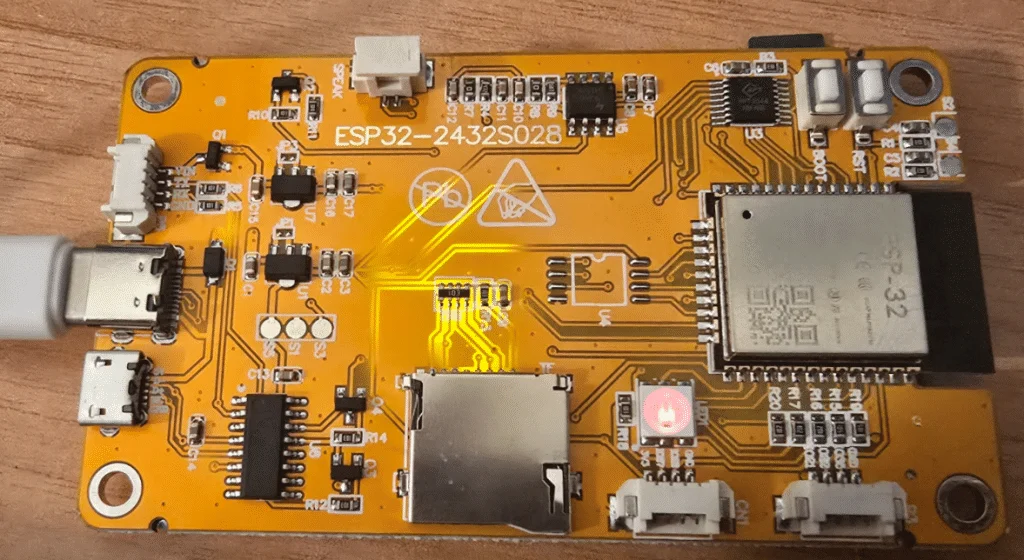
A roughly €10 Cheap Yellow Display (CYD) can become a pocket sized scanner for WiFi, Bluetooth Low Energy and Classic Bluetooth. The hardware is inexpensive and has a touchscreen, but getting all three scanning modes working took far more than a quick firmware flash. The project needed changes for the smaller display, fixes for Bluetooth discovery and scan result handling, and a way to browse beyond the first five devices.
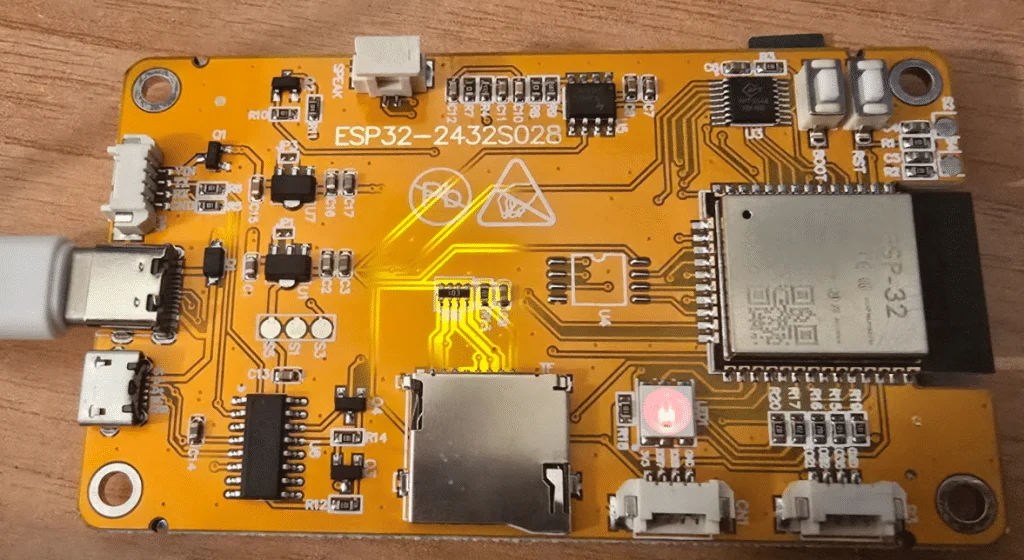
The finished scanner runs on the author’s 2.8 inch CYD, which has a 320 × 240 touch display, a full size ESP32 and USB-C for power and programming. It’s a useful example of what this family of boards can do, with a practical caveat: “CYD” covers several hardware variations, so the supplied settings may not match every board sold under that name.
A compact board with a touchscreen
The author says the board cost just over €10, including postage and the tax included in the quoted price. It arrived with a USB-A to USB-C cable, small adaptors and an Allen bolt. On the rear are the ESP32, a microSD slot and a microUSB connector; the author hasn’t used either slot. There are also a couple of buttons that the project doesn’t rely on, and an onboard RGB LED that the revised firmware puts to use.
The screen is the 2.8 inch version, with a 320 × 240 resolution. The scanner code had originally been aimed at a CYD with a 480 pixel wide display, so its layout needed adjustment. The board also showed inverted display colours with the original setup, adding another hardware specific issue to resolve before the interface looked right.
There’s no apparent battery provision on this particular board, so the scanner is USB powered. That limits its usefulness as a roaming tool, though it still makes a small bench or desk scanner. Other CYD variants may differ in screen size, features and connections; buyers should check their exact board before using someone else’s pin settings or display configuration.
Three radio modes, one touchscreen interface
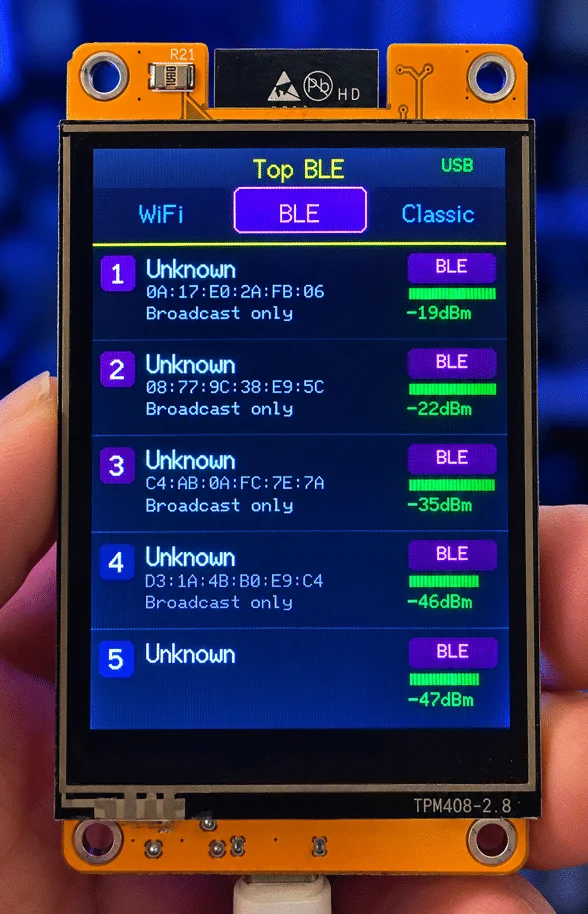
The scanner puts three buttons across the top of the display: WiFi, BLE and Classic. Tapping one switches the radio mode, and the screen updates to show the relevant scan. The interface uses a 240 × 320 coordinate system in the supplied configuration, with device lists showing names, addresses, signal strength and mode specific details.
WiFi results include the network name, MAC address, channel and a security label. The code recognises open networks and labels WEP, WPA, WPA2 and WPA3 where it can identify them from the captured management frame data. BLE entries show a device name when one is advertised, its address and whether the device is connectable. Classic Bluetooth entries show the name when available and the address.
Each scan displays up to five devices on a page, ordered by signal strength. When the scan finds more, vertical swipes move through the remaining pages. That change matters because tapping a listed device opens a signal tracker; without scrolling, devices outside the first five would remain inaccessible from the list.
The tracker shows the selected device’s current RSSI, a percentage style signal quality indicator, the strongest RSSI recorded during the tracking session and a short history graph. A moving bell shaped graphic responds to signal changes, offering a visual cue as the signal rises or falls. For WiFi, the code sets the radio to the selected network’s channel while tracking. BLE and Classic Bluetooth continue scanning so the displayed signal can be refreshed.
The signal percentage is a conversion made by the firmware, not a measurement of connection quality or throughput. The code maps RSSI values at or below −100 dBm to 0%, values at or above −30 dBm to 100%, and scales the range between them. That gives the display a quick visual gauge, while the RSSI reading remains the more direct value to compare.
What had to be fixed
The author first considered an existing project called WhereFiCYD, after finding another scanner project that wasn’t suitable for the board. The selected project had reportedly been updated in the months before the author tried it, and the original developer is credited in the code. But the starting version didn’t work cleanly on this 320 × 240 board.
One of the more confusing details was the project’s reference to Python. Despite a file header naming a Python file, the program itself is C++. The author built it in Visual Studio Code on a Windows 11 PC using PlatformIO, then flashed the board over a serial connection. The initial hope was that this would be a simple drop in project; in practice, the work took nearly two days.
Display dimensions and colour inversion were only part of the problem. The original code could find BLE devices, but it failed to detect a phone set to be visible for Classic Bluetooth discovery. The author and a collaborator found that Classic Bluetooth had not been set up correctly in the original code. They also fixed missing scanned device entries and added result clearing so each new scan starts with a fresh list.
The post describes another limitation in the first version: when more than five BLE devices appeared, the list had no swipe gesture for reaching those below the initial five. The revised touch handling recognises an upward or downward swipe in list view and changes the displayed page. A tap on an entry still opens its tracker, while a long press toggles a debug overlay that marks the touch zones.
WiFi scanning hops through 13 channels, with an 80 millisecond dwell setting in the code. BLE scans run for two seconds, and Classic Bluetooth discovery is allotted 15 seconds. These are the durations used by this implementation, not a guarantee that every nearby device will appear in every scan. Discovery depends on what devices are advertising or visible during the scan window.
The author later made another code change, dated October 7, 2026, to clear WiFi and BLE results before subsequent scans. The update brings the result clearing behaviour in line across all three modes. The article says that people who tried the project on October 5, 2026 should use the later code.
RGB feedback and the flashing workflow
The onboard RGB LED now changes colour with the selected radio mode. WiFi uses yellow, BLE uses magenta, and Classic Bluetooth uses cyan. The board’s LED is active low, so the code inverts the brightness values when setting its red, green and blue channels. It’s a small addition, but it gives the scanner a mode indicator that remains visible without checking the display.
The supplied firmware also draws a USB label where a battery indicator might otherwise appear. Although the code contains a battery percentage helper, the visible interface identifies USB power. That fits the author’s board, which appears to lack a battery connection.
The author notes that the scanner can be replaced with a Manic Miner game by flashing different firmware over USB, then restored by uploading the scanner code over the serial connection. In the author’s setup, neither switch required pressing a reset or flash button on the board. That makes the CYD a flexible small display for experimenting with different projects, even if this scanner took more setup than expected.
Building the project
The article recommends opening the original project in Visual Studio Code with PlatformIO installed. The revised C++ code and PlatformIO configuration are included in the source post. The configuration selects an ESP32 development board, the Arduino framework, the TFT_eSPI display library and the XPT2046 touchscreen library.
Several build flags set the screen to 240 × 320, select the ST7789 display driver and define pins for the display, backlight and touch controller. The configuration also sets SPI frequencies and loads the fonts used by the interface. Its upload port is set to COM16, which is specific to the author’s Windows PC; anyone following the setup needs to change that value to the serial port assigned to their own board.
The code also depends on ESP32 WiFi, BLE and Bluetooth Classic libraries and system interfaces. That mix is part of why switching between radio modes requires more care than simply changing a label on screen: the firmware has to stop one radio stack and start another. The mode switching code resets the app to the scan screen, clears the visible list state and starts the selected radio.
Some board details remain specific to the author’s unit, including the touch calibration values and pin assignments. A different CYD variation could use a different display or wiring, so a successful build on one model doesn’t establish compatibility across the whole family. The author’s configuration is a starting point for the pictured 320 × 240 board.
Who should try it?
This project suits someone who already has an ESP32 CYD, wants a self contained way to spot nearby wireless devices, and is comfortable editing firmware settings. The display makes scanning and signal tracking easy to inspect without a separate computer once the code is running. The device list, RSSI readout and history graph give the project more practical value than a simple count of detected devices.
It’s less appealing if the goal is a ready made portable scanner. Setup involves a development environment, matching the code to the board, selecting the right serial port and potentially checking the display and touch configuration. On the author’s board, USB power is also required. The code’s scan windows and device cap mean the display is best treated as a quick local view of detected devices, rather than a complete inventory.
The key takeaway is that a low cost CYD can handle WiFi, BLE and Classic Bluetooth scanning, but the result depends on matching the firmware to the exact board and correcting the original project’s gaps. For owners of the same 320 × 240 version, the updated code adds the missing Classic Bluetooth setup, fresh scan results, swipe navigation and mode linked LED colours; for other CYDs, the hardware variation is the first thing to check.