Move Data from Android to iPhone 18 Pro: What Transfers and What Doesn’t
Apple’s Move to iOS app can bring contacts, messages, photos and more to an iPhone 18 Pro. Music, books and PDFs still need manual transfer.
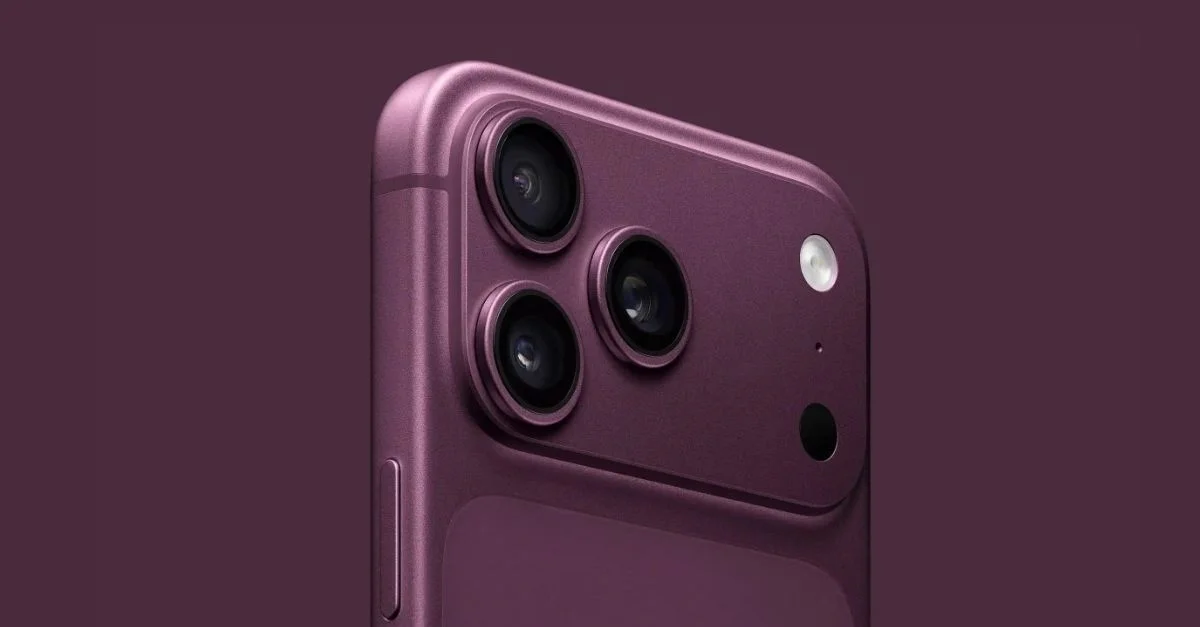
Moving to an iPhone 18 Pro or iPhone 18 Pro Max from Android is easiest before you finish setting up the iPhone. Apple’s Move to iOS app can copy a broad set of personal data, including contacts, messages, photos and WhatsApp content, but it won’t bring everything across. Plan to transfer music, books and PDFs separately, and keep both phones powered and untouched while the copy runs.

The process described here is for a new or erased iPhone. If you’ve already completed iPhone setup, using Move to iOS means erasing the device and starting again. To keep your existing iPhone data in place, move the Android content manually instead.
Prepare both phones before you start
Check that the content you want to bring over will fit in the iPhone’s available storage. On Android, turn on Wi-Fi and install the latest version of Chrome if you want to transfer browser bookmarks. Plug both phones into power; the transfer may take a while, particularly if you’re moving a large photo library or a long message history.
A USB-C cable can connect the Android phone directly to the iPhone and may speed up the copy. The instructions also work over a temporary Wi-Fi connection created by the iPhone during setup.
Start the transfer during iPhone setup
Turn on the iPhone and place it near the Android phone. Follow the setup prompts. At Quick Start, choose “Set Up Without Another [Apple] Device” and continue. You may be asked to activate an eSIM as part of setup.
When you reach the Transfer Your Apps & Data screen, choose “From Android,” then “Transfer with App.” That choice opens the path for Apple’s Move to iOS app to copy supported data from the Android phone.
Connect the Android phone to Move to iOS
Open Move to iOS on Android and tap Continue. Review and accept the terms shown in the app, choose whether to send app data to Apple, and grant location or notification permissions if prompted. If the app isn’t installed, use the QR code option on the iPhone to open its Google Play Store page.
On the iPhone, continue from the Move from Android screen. A six digit or ten digit code should appear. Enter it on the Android phone. The iPhone will then create a temporary Wi-Fi network; when Android asks, connect to that network and wait for the Transfer Data screen.
Choose what to copy, then let it finish
Select the content you want to move on Android and tap Continue. The available categories include contacts, SMS messages, message history, call history, camera photos and videos, photo albums, files and folders, accessibility and display settings, web bookmarks, email accounts, WhatsApp messages and media, Voice Memos, and calendars.
Some free apps may also be matched if they’re available in both Google Play and Apple’s App Store and support the transfer feature. After the copy, you can download matched free apps from the App Store. The transfer does not move every app automatically, so check your iPhone afterward and install anything you still need.
Leave Move to iOS open on Android and keep the phones close together and connected to power until the loading bar on the iPhone finishes. Android may say its part is done before the iPhone’s loading bar completes; wait for the iPhone. Opening another app or answering a call on Android before the process ends can interrupt the transfer.
Finish setup and check what’s missing
When the iPhone’s loading bar is complete, tap Done on Android. Continue through the iPhone setup prompts. Your phone number and SIM or eSIM may be activated during this process, and you may be directed to your network provider’s website to finish activation.
Once setup is complete, check your contacts, messages, photos and other selected data. Music, books and PDFs need to be moved manually. Apps that weren’t matched or transferred can be downloaded from the App Store.
If the copy stalls or fails
Keep the Move to iOS app in the foreground on Android for the full transfer. If the connection drops, turn off Android settings or apps that can switch or optimize Wi-Fi, such as Sprint Connections Optimiser or Smart Network Switch. You can also forget saved Wi-Fi networks in Android’s Wi-Fi settings, then retry.
If the phones still won’t connect, restart both and try again. Turning off mobile data on Android before restarting the transfer may also help. A stable connection and uninterrupted time matter most when the copy includes a lot of content; leaving both phones alone until the iPhone finishes is the simplest way to avoid having to repeat it.
Also See: Range Rover Sport Electric Debuts With 609 Km Range, Bookings Open in India: Details Inside